
This article will explain the steps required to build an offline depot for VCF9 on Photon OS. This process can be better automated, for example, using Ansible or Cloud-init; however, for now, I will show all the steps manually.
Navigation
- Downloads
- Create DNS records
- Deploy Virtual Machine
- Install the OS
- Photon OS and Apache Setup
- Configure SDDC Installer for new install
- Configure VCF Ops for existing install
- Scheduled Patch Store Updates
- Conclusion
Downloads
Head over to the Broadcom support site for VCF, under drivers and tools, grab the VCF download tool.

Head on over to the VMware Photon OS download site and grab the full ISO image for Photon 5. In my case, I’m deploying this when I already have VCF installed. I’m actually about to re-deploy VCF entirely. I’ll upload the Photon OS ISO and build the VM on a backup NVMe.
This is a dedicated NVMe attached directly to the PCIe slot using a Sabrent PCIe NVMe card. This means when I come to rebuild my VCF9 setup and the ESX OS disk is formatted, I can retain my virtual machines and images. As the drive is NVMe directly attached, it’s lightning fast.

Create DNS records
The following address was added to my MikroTik router for the new depot VM. This creates forward and reverse records.
/ip dns static
add address=10.166.101.1 comment="VCF Depot" name=depot01.aclab.uk type=A
Deploy Virtual Machine
First off, create a new VM.

I’m placing it inside the VCF cluster. When we rebuild and use it, we can re-register this VM from locally mounted storage on a standalone host.

For storage, I select a data store that is not part of vSAN or the ESX OS.

Compatibility can be left at version 9.0 and later.

For the OS, we will be using Photon OS 64bit.
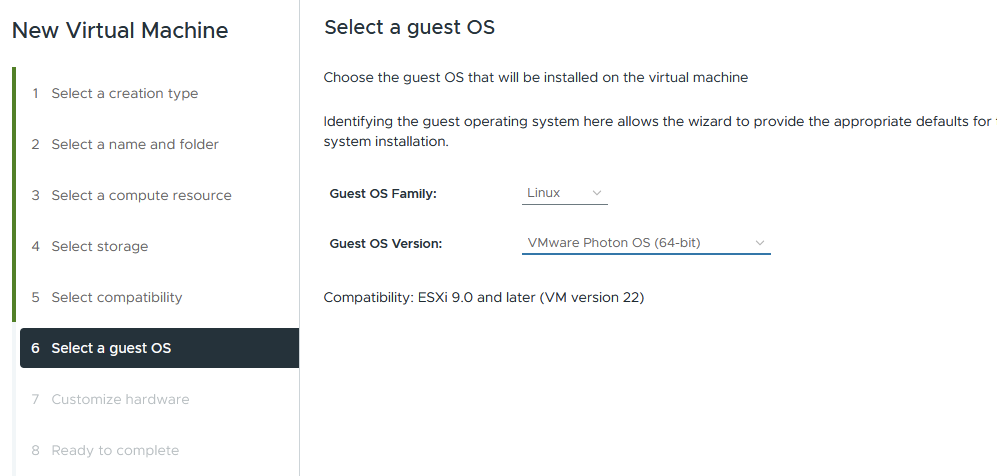
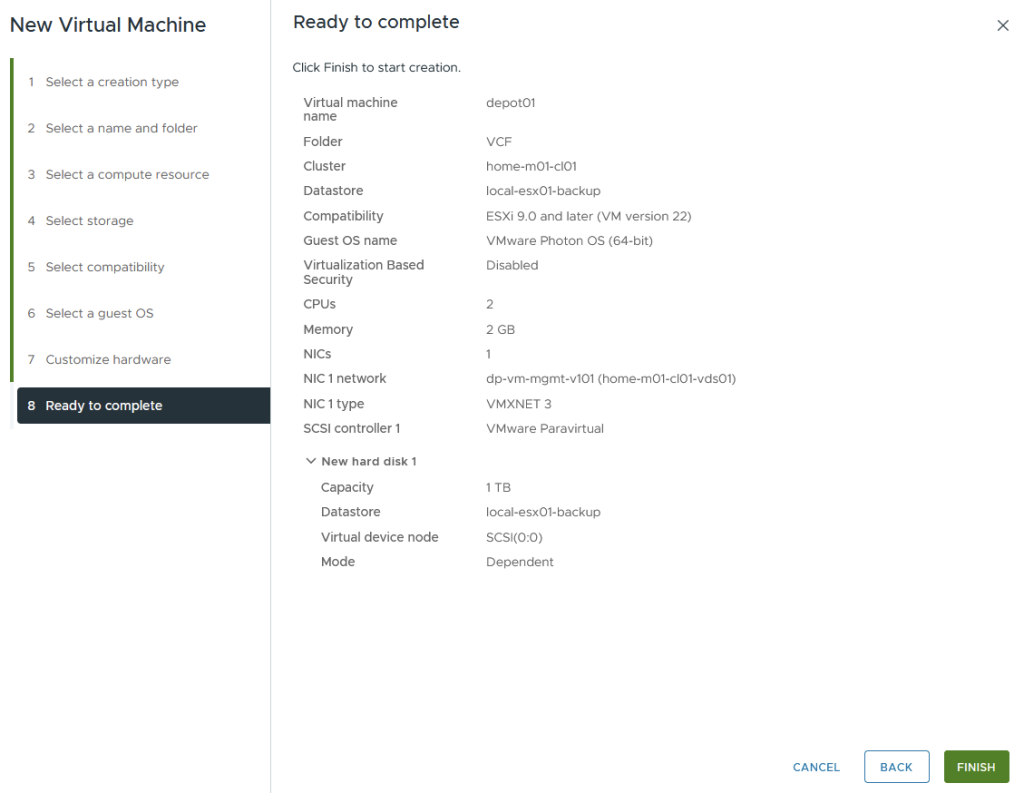
For hardware, 2 vCPU and 2GB with 1TB thin disk should be fine. Set the NIC to VLAN 101, which is the management VLAN where ESX, NSX, vCenter etc reside. Set the DVD drive to the Photon ISO uploaded earlier.

Review and finish.
Install the OS
Boot the VM and accept the EULA.

Select auto for disk partitioning.

Select Photon minimal for the installation type.

Configure the network manually.

Enter the network details.

Select VMware hypervisor optimised.

Enter the hostname.

The root password and its confirmation.

Click yes to start the install.

Photon OS and Apache Setup
From the initial boot, you will be unable to SSH remotely, log in via the console from ESX and run the following commands. I recommend using a temporary basic password, as doing it via the VMware console is a pain.
useradd vcf -d /home/vcf -m
passwd -x 99999 vcf
passwd vcf
echo "vcf  ALL=(ALL)  NOPASSWD: ALL" >> /etc/sudoers.d/vcf
Once done, you will be able to SSH to the depot01 VM with vcf@depot01.aclab.uk and the temporary password. At this point, you can complete the setup with the following commands, which are much easier to paste over SSH.
## set secure password
passwd

## upload root certs, apache cert and download tool from my local machine
scp Root02.pem vcf@depot01.aclab.uk:/home/vcf
scp Sub03.pem vcf@depot01.aclab.uk:/home/vcf
scp Sub04.pem vcf@depot01.aclab.uk:/home/vcf
scp aclabuk_wildcard_microsoft_issued_public.pem vcf@depot01.aclab.uk:/home/vcf
scp aclabuk_wildcard_microsoft_issued_private.pem vcf@depot01.aclab.uk:/home/vcf
scp vcf-download-tool-9.0.2.0.25151284.tar.gz vcf@depot01.aclab.uk:/home/vcf

## setup public key auth for vcf user, replace the public key with your own
mkdir /home/vcf/.ssh
chmod 700 /home/vcf/.ssh
echo "ssh-ed25519 AAAAC3NzaC1lZDI1NTE5AAAAINHl20St5gyzVw/NXHpNcS8nUXwgrYHIvP/+f3ijtGAw" > /home/vcf/.ssh/authorized_keys
chmod 600 /home/vcf/.ssh/authorized_keys
sudo chown vcf:root /home/vcf -R

## secure sshd so only public key auth is possible
sudo su
cp /etc/ssh/sshd_config /etc/ssh/sshd_config.bak
sed -i 's/#PasswordAuthentication yes/PasswordAuthentication no/' /etc/ssh/sshd_config
echo "AuthenticationMethods publickey" >> /etc/ssh/sshd_config
systemctl daemon-reload
systemctl restart sshd

## install packages, configure certificate trust
tdnf install httpd tar jq perl tree openssl-c_rehash vim --assumeyes
tdnf update --assumeyes
cd /home/vcf
cp Root02.pem /etc/ssl/certs/
cp Sub03.pem /etc/ssl/certs/
cp Sub04.pem /etc/ssl/certs/
rehash_ca_certificates.shy

## setup tls certs for apache
cp aclabuk_wildcard_microsoft_issued_public.pem /etc/httpd/conf/server.crt
cp aclabuk_wildcard_microsoft_issued_private.pem /etc/httpd/conf/server.key
chmod 0400 /etc/httpd/conf/server.key /etc/httpd/conf/server.crt
chown root:root /etc/httpd/conf/server.key /etc/httpd/conf/server.crt

## add htaccess password for vcf user for use with the COMP directory
htpasswd -c /etc/httpd/conf/.htpasswd vcf
chown apache /etc/httpd/conf/.htpasswd
chmod 0400 /etc/httpd/conf/.htpasswd

## copy your broadcom secure token and install the download tool
echo "your broadcom download token" > /home/vcf/downloadtoken.txt
mkdir vcf-download-tool
tar -xvf vcf-download-tool-9.0.2.0.25151284.tar.gz -C vcf-download-tool
cd vcf-download-tool/bin

## install patch store service
mkdir -p /var/www/html/umds-patch-store
./vcf-download-tool umds install
./vcf-download-tool umds run -S --patch-store /var/www/html/umds-patch-store

## list current host platforms
./vcf-download-tool umds run -L

## configure only 9.0.2 downloads to save space and perform a check
./vcf-download-tool umds run -S --disable-host
./vcf-download-tool umds run -S -e embeddedEsx-9.0.2-INTL

## confirm configuration
./vcf-download-tool umds run -G

## add your token and download patches based on 9.x configuration
./vcf-download-tool umds run vmware-umds -S --add-entitlement-token <your broadcom download token>
./vcf-download-tool umds run vmware-umds -D

## download vcf 9.0.2 install binaries
./vcf-download-tool binaries download --depot-download-token-file /home/vcf/downloadtoken.txt --vcf-version 9.0.2  -d /var/www/html --automated-install --type INSTALL

## backup and replace the apache configuration files with the ones provided in my github
## modify line 158 in httpd-ssl.conf to include your own hostname as required
cd /home/vcf
cp /etc/httpd/conf/httpd.conf /etc/httpd/conf/httpd.conf.bak
cp /etc/httpd/conf/extra/httpd-ssl.conf /etc/httpd/conf/extra/httpd-ssl.conf.bak
curl https://raw.githubusercontent.com/amayacitta/vcf9-lab/refs/heads/main/depot/httpd.conf -o /etc/httpd/conf/httpd.conf
curl https://raw.githubusercontent.com/amayacitta/vcf9-lab/refs/heads/main/depot/httpd-ssl.conf -o /etc/httpd/conf/extra/httpd-ssl.conf

## validate apache config and start the service
httpd -t
systemctl enable httpd
systemctl start httpd
systemctl status httpd

## configure firewall to allow https
cp /etc/systemd/scripts/ip4save /etc/systemd/scripts/ip4save.bak
sed -i 's/COMMIT/-A INPUT -p tcp -m tcp --dport 443 -j ACCEPT/' /etc/systemd/scripts/ip4save
echo "COMMIT" >> /etc/systemd/scripts/ip4save
systemctl restart iptables

## fix permissions
chown apache:apache -R /var/www/html/
find /var/www/html -type d -exec chmod 0500 {} \;
find /var/www/html -type f -exec chmod 0400 {} \;
chmod 755 /var/www/
chmod 755 /var/www/html/
The binary downloads will take a while. When complete, you will see a summary.

After downloading the patch store files for 9.x and the VCF 9.0.2 binaries, we have used 124GB.

The layout of apache is as follows.

Next, we need to log in to the SDDC installer and ensure we have a full chain of trust for the certificates.
## upload root certs from my machine
scp Root02.pem vcf@sddcm01.aclab.uk:/home/vcf
scp Sub03.pem vcf@sddcm01.aclab.uk:/home/vcf
scp Sub04.pem vcf@sddcm01.aclab.uk:/home/vcf

## ssh to the sddc installer and configure cert trust
ssh vcf@sddcm01.aclab.uk
su
tdnf install -y openssl-c_rehash
cp *.pem /etc/ssl/certs/
rehash_ca_certificates.sh

## test connection
curl -v https://depot01.aclab.uk

## as per below also add to java key store
## https://knowledge.broadcom.com/external/article/316056/how-to-adddelete-custom-ca-certificates.html
## grab password
cat /etc/vmware/vcf/commonsvcs/trusted_certificates.key

## import roots into java key stores
keytool -importcert -alias root02 -file /home/vcf/Root02.pem -keystore /etc/vmware/vcf/commonsvcs/trusted_certificates.store --storepass 'pass from prior command'
keytool -importcert -alias sub03 -file /home/vcf/Sub03.pem -keystore /etc/vmware/vcf/commonsvcs/trusted_certificates.store --storepass 'pass from prior command'
keytool -importcert -alias sub04 -file /home/vcf/Sub04.pem -keystore /etc/vmware/vcf/commonsvcs/trusted_certificates.store --storepass 'pass from prior command'

## for this one the password is literally changeit
keytool -importcert -alias root02 -file /home/vcf/Root02.pem -keystore /etc/alternatives/jre/lib/security/cacerts --storepass 'changeit'
keytool -importcert -alias sub03 -file /home/vcf/Sub03.pem -keystore /etc/alternatives/jre/lib/security/cacerts --storepass 'changeit'
keytool -importcert -alias sub04 -file /home/vcf/Sub04.pem -keystore /etc/alternatives/jre/lib/security/cacerts --storepass 'changeit'
We can also now test this in our browser. Hitting the root of the web server will show this.

If we go to /PROD/COMP or /PROD/metadata, we should be prompted for a username and password. This is the VCF user and password we configured above with htpasswd.

Once we enter the correct credentials, we can see the directory contents.


Configure SDDC Installer for new install
At this point, we can point the SDDC installer at the offline depot URL. From the main page, click depot settings and binary management.

Click configure on offline depot and enter the details, click configure.

After a few seconds, the depot will become active, and you can continue with a normal install.

The 9.0.2 download from the depot to the installer will happen locally.

Configure VCF Ops for existing install
Log in to VCF Operations and go to Fleet Management > Life Cycle > VCF Management > Depot Configuration. Click Configure on the offline depot and enter the details.

Go to VCF instances > select the VCF instance > Depot Settings. Click on setup on the offline depot and enter the details.

Check the following areas:
- Fleet Management > Life Cycle > VCF Management > Binary Management. Check 9.0.2.0 for operations lists as downloaded.
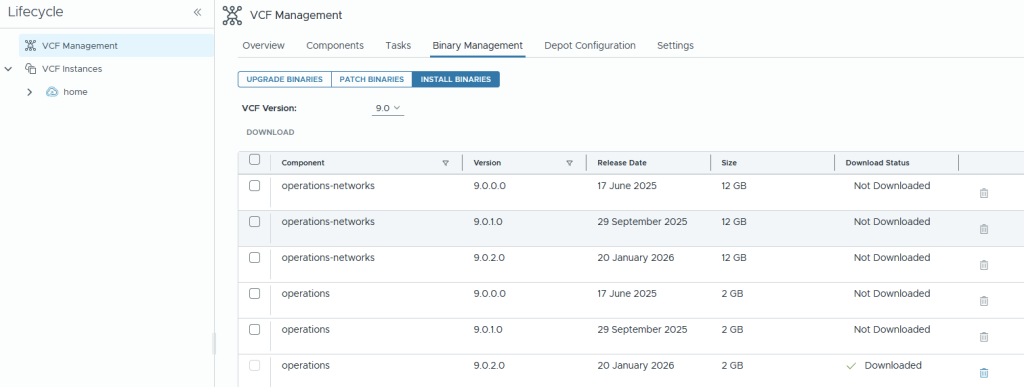
- Fleet Management > Life Cycle > VCF Instances > Instance > Binary Management. Check 9.0.2.0 is downloaded, and the metadata sync works OK.

- Fleet Management > Life Cycle > VCF Instances > Instance > Binary Management > ESX Component. Perform a sync of the ESX components.

If you look in Fleet Management> Tasks > confirm the task is running and that it completes OK. This will connect to the UDMS patch store on URL https://depot01.aclab.uk/umds-patch-store/

Eventually, it will be successful.


Scheduled Patch Store Updates
By default, there is no scheduling mechanism within the patch store service. UMDS doesn’t get deployed as a systemd service or cron job. To allow nightly updates, perform the following. By default, the daily jobs run at 04:02 every day.
## deploy cron
tdnf update --assumeyes
tdnf install cronie --assumeyes

## create crontab file
cat <<EOF > /etc/cron.daily/umds.sh
/home/vcf/vcf-download-tool/bin/vcf-download-tool umds run vmware-umds -D
EOF
chmod +x /etc/cron.daily/umds.sh
Conclusion
This concludes the setup of the offline depot. I hope it was helpful.
