
In the first of a two-part series, we will explore deploying Tanzu with AVI Load Balancer. In this article we will explore integration with NSX Classic networking. In part #2, we will explore AVI with NSX VPC networking.
Tanzu built with AVI is arguably the most modern and feature-rich pathway. Unfortunately, AVI is not bundled with VCF; it’s a paid add-on. Licensing is based on the data plane, not the control plane. There are various licensing scenarios, such as Bandwidth, Per-App, Bare Metal, etc. Details are fleshed out in the main administrator’s guide here.
Navigation
- Introduction
- Target Topology
- Preperation
- Deploy AVI HA Control Plane
- Deploy AVI Single Node Control Plane
- Configure AVI Control Plane
- Configure NSX Cloud for NSX Classic Networking
- Deploy the Tanzu Supervisor
- Validate the Tanzu Supervisor
- Additional Namespaces
- AVI DNS Setup
- VKS Deployment
- Final Topology
- Conclusion
Introduction
As a load balancer, AVI is up there as one of the best; it has a fully split control/management and data plane with linear scaling and full support for VCF, public/private cloud and bare metal. There are broad integration guides for VMware, Google, Linux, OpenStack, Azure, KVM, Cisco ACI, Oracle, AWS and Nutanix. It supports WAF, GSLB and other enterprise-ready features.
You can integrate AVI into VCF in two ways; in either case, there is always a 1-1 relationship between NSX Manager and the AVI control plane.
- Deploy a dedicated NSX manager and AVI control plane cluster into each workload domain. This is referred to as a 1:1 architecture.
- Deploy a single NSX manager and AVI control plane cluster into the management domain and use this to deploy AVI data plane virtual machines, called service engines, to each workload domain. This is referred to as a 1:N deployment.
In my lab, as per my VCF9 Lab article, I have a management domain with a single host, so there isn’t much choice here. I can only deploy to the management domain, and have no other workload domains to deploy to or share with.
Target Topology
This is the target topology for this article. I’ll explain each step to get there.

Preperation
First we pre-create DNS records. For my lab, I added the following to my MikroTik router. This adds both forward and reverse records automatically. The deployment relies on DNS resolution to allocate the main AVI VIP.
## add forward and reverse records
/ip dns static
add address=10.166.101.27 comment="AVI CP VIP" name=avi.aclab.uk type=A
add address=10.166.101.28 comment="AVI VP 01" name=avi01.aclab.uk type=A
add address=10.166.101.29 comment="AVI VP 02" name=avi02.aclab.uk type=A
add address=10.166.101.30 comment="AVI VP 03" name=avi03.aclab.uk type=A
Before creating a workload cluster, we must add the AVI bundle to the SDDC manager. This will allow the selection of the latest version when adding AVI to the workload domain via SDDC manager.
The AVI bundle contains three files, two are present on the AVI GitHub page.
The third, AVI OVA is downloaded from the Broadcom support portal.
First, download the JSON and Sig files. At the bottom of the JSON file, you will find the latest supported version. Take note of the productVersion and fileName.
At the time of writing this article, productVersion 31.2.1-25015167 was the latest. This is one release behind what’s available on the Broadcom download page. Once you know what the version is, download the related OVA file from the Broadcom website.

Next, download the AVI bundle bash script from the AVI GitHub repository. I also had to run the following commands from SSH on the SDDC manager as per KB 394427. Even on VCF 9.0.2, without these permission tweaks, I was getting the following permission failures.

## fix permission errors with the avi bundle script
ssh vcf@sddcm01.aclab.uk
su
chown -R vcf_lcm:vcf /nfs/vmware/vcf/nfs-mount/bundle/
chmod -R 0777 /nfs/vmware/vcf/nfs-mount/bundle/
From a Linux Bash shell, run the following. In my case, I used my Fedora WSL instance.
## change to my download path where the sig, json and ova files are
cd /mnt/c/Users/agill/Downloads

## download the script and make executable
wget https://raw.githubusercontent.com/avinetworks/devops/refs/heads/master/tools/vcf/vcf_tools.sh
chmod +x vcf_tools.sh

## run
./vcf_tools.sh
When you run the script, follow the prompts. Remember to use ./pvc.json and ./pvc.sig for the file paths. Here is the complete process.

From the SDDC manager GUI, you will see the successful bundle upload in the task history.

Deploy AVI HA Control Plane
Only follow these steps if you have enough compute capacity and three hosts. You will need 96Gb of RAM and three hosts for the DRS anti-affinity rules. If you’re running a small two or one-node lab, please follow the steps in the deploy AVI single-node control plane section instead.
From the inventory > workload domain section of SDDC manager, click the workload domain. Under actions, you can deploy AVI Load Balancer.

For VCF 9.0.2, I had the following issue.
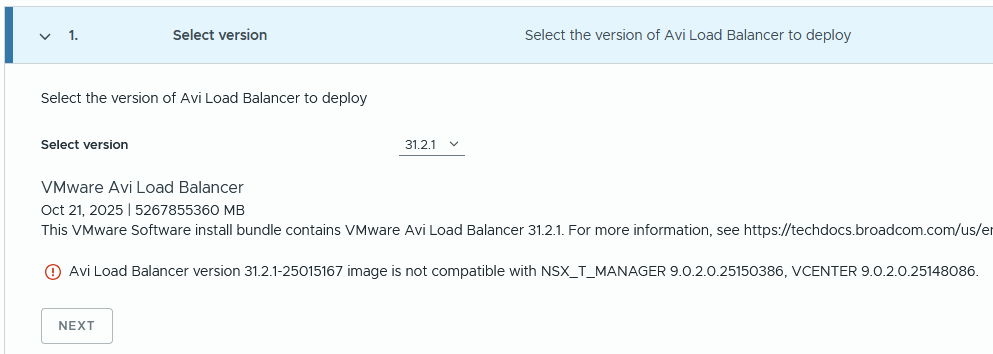
If you check the product interoperability matrix, it should be supported. Unless I need my glasses.


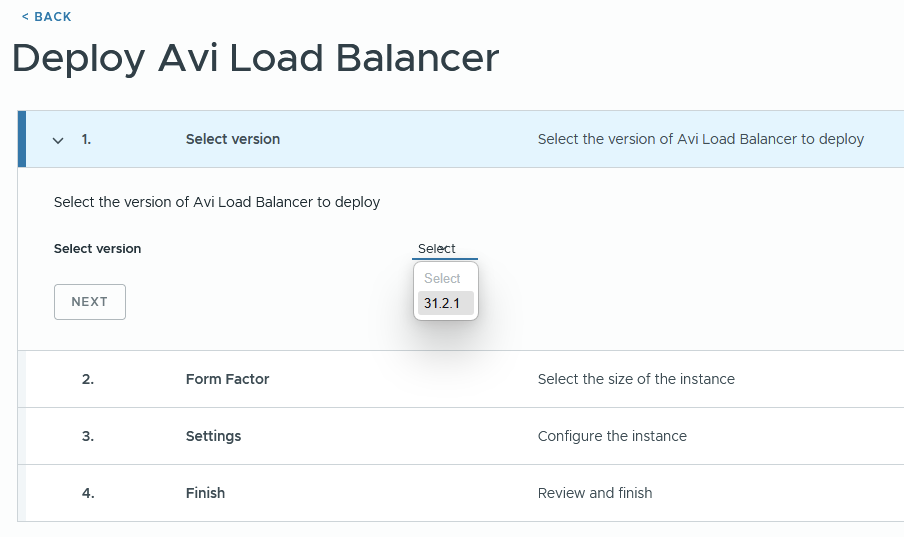
I repeated the above steps, but for version 31.1.2, and there was no compatibility issue. Click next.

Select the required size. Follow the guidance in the table below. Small will scale up to 200 service engines. Note that whatever you choose, three control plane nodes will be deployed for HA reasons. Click next.
| CPU/ Memory Allocation | Small (6 CPUs/ 32 GB) | Large (16 CPUs/ 48GB | X-Large (16 CPUs/ 64 GB) |
| Base processes | 19 GB | 24 GB | 32 GB |
| Log analytics | 13 GB | 24 GB | 32 GB |
| SE Scale | 0-200 | 200-500 | 200-500 |

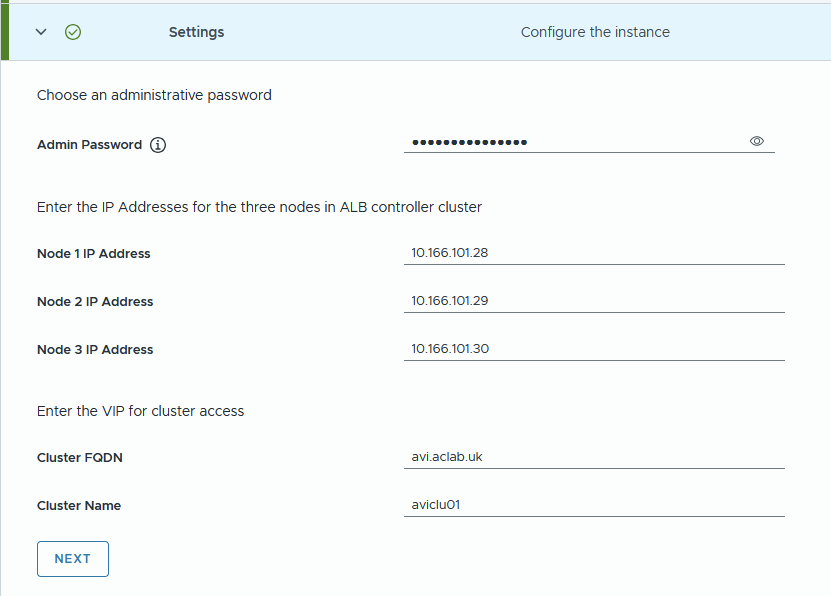
Complete the details referencing the DNS records added earlier. DNS resolution of the AVI FQDN is what determines the VIP address. Click next.
Review and click Start Deployment.

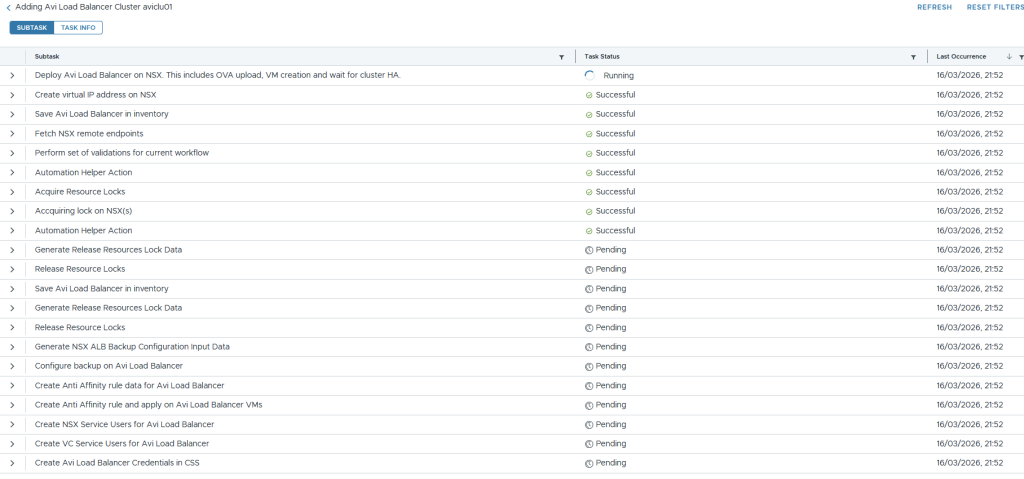
The task page in SDDC Manager will show the progress of the deployment.

If you click the task itself, you will get more granular detail about its progress.
Under NSX manager > system > appliances, you will notice the VIP for AVI is configured, and the controllers are being deployed.

vSphere will show the OVA deployments.

Which go into an unmarked folder. Once deployed, you can move them wherever you like. I placed mine under the VCF folder.

The deployment put a lot of strain on my lonely MS-A2 host. To complete the install, I had to shut down VCF Ops and one of the edge nodes. The system was running hot and throwing high active DRAM memory usage.

Tier1 memory on NVMe was churning away, which is shown with memstats.

From SSH on the first AVI node, I could see it build the cluster.
ssh admin@avi01.aclab.uk
shell
show cluster status
The control plane VIP was active, and I could see the last node joining the cluster.

Should you have three nodes, everything will deploy successfully, and the following will be achieved.
- Automatic creation of a three-node control plane cluster
- Backup will be configured for the SDDC manager.
- Anti-affinity DRS rules will be added against the compute cluster in vCenter
- NSX and vCenter service users will be added and configured
Unfortunately, the SDDC manager expects more than one node and bombs out with the following error. You’ll only see this if you have a single host.
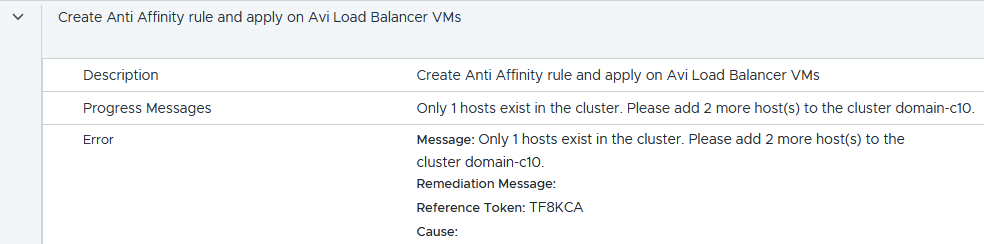
Within the workload domain services, there is no AVI, and there is no fix I know of.
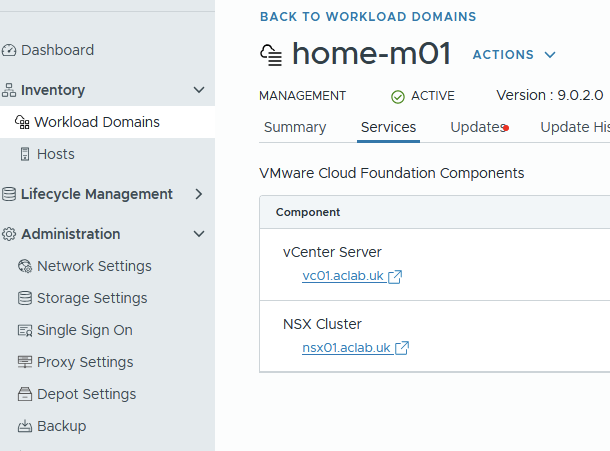
If you have a single host, hopefully you didn’t get this far and have already completed the single-node deployment as outlined below. If needed, go to the workload domain > actions > remove AVI load balancer and then complete the steps in the single node control plane section below.

Deploy AVI Single Node Control Plane
If you have a single node in your environment, you will want to follow William Lam’s tip. As per his single-node AVI load balancer article, we add the following to the SDDC manager.
echo 'feature.vcf.vgl-41078.alb.single.node.cluster=true' >> /home/vcf/feature.properties
reboot
Download a slightly modified version of his PowerShell script, which will configure a single node control plane node via the SDDC manager. The updated script includes parameters, making it easier to reuse in different environments.
Run the script and complete the prompts. DNS resolution of the AVI FQDN is what determines the VIP address.
.\deploy-single-node-avi.ps1
This deploys a single node and completes in under 10 minutes.

Configure AVI Control Plane
Log in to the AVI control plane and complete the wizard. Enter a backup passphrase. DNS resolver and search domain. Click next.

Enter email details if needed. I chose to disable this.

Under multi-tenant, if you leave the defaults, your networking and service engines will be inside a common “admin” tenant and VRF. This is configurable later under system settings. For my lab, I only have one management domain, with no workload domains, so I have left it at the default. Tick the setup cloud after box and click save.
There are some decent sections in the official documentation which explain tenants very well. Read this and this.

Go to administration > licensing and set to the enterprise tier.

Because we have deployed the AVI control plane through the SDDC manager, AVI will have already been onboarded into NSX. There is no need to complete the onboarding workflow; instead, we can simply check it with the command below.
Note the status of DEACTIVATE_PROVIDER and also the certificate used, which is the default self-signed one. This will need to change before we deploy the supervisor cluster.
curl -k -u 'admin:<changeme>' --location --request GET https://nsx01.aclab.uk/policy/api/v1/infra/sites/default/enforcement-points/alb-endpoint
Configure Certificate Trust
Next, we install a new AVI portal certificate and roots. Go to Templates > Security > SSL/TLS Certificates > Create > Root/Intermediate > Import your own PKI root and issuing certificates. Click validate and save for each.

They will then all show under the Root/Intermediate CA section.

Click Create > Controller Certificate. You can either import a pre-created certificate or create a CSR and have it issued against your PKI.
In my case, I have the certificate below in PFX format. The minimum SAN names on the cert are the VIP FQDN and IP address. When you register the enforcement point, an IP address is required in the certificate. My cert covers the VIP in DNS and IP, as well as the nodes in DNS and IP format.

The following commands will convert the PFX to PEM.
## export public and private key from pfx
openssl pkcs12 -in avilb_certificate.pfx -out avilb_certificate_public.pem -nokeys -clcerts
openssl pkcs12 -in avilb_certificate.pfx -out avilb_certificate_private.key -nocerts -nodes
We can then import into the SSL/TLS certificate wizard, uploading the public/private key pair.

Before we assign the certificate to the portal, we want to ensure there is a proper chain of trust from NSX. We do this by importing the root certificates using option 2 within the vcf_tools.sh script we used earlier. However, you can only import one at a time, and the file must be root.crt, which is a pain.
Given I have three in total, one offline root and two subordinates, to save the faff of renaming and repeating the operation three times, we can do it manually.
Log in to NSX Manager > System > Certificates > Trusted CA Bundles > Import CA Bundle and select each of the CA certificate files. In my case, I have three. A Root and two subordinates.

Once done, all three will be present in NSX Manager.

Also, add the root certificates to the NSX Manager key store. This is required to get the NSX Container Plugin (NCP) and ALB (AVI Load Balancer) connection fully trusted without needing to accept the certificate thumbprint manually.
## Upload the root certs to NSX manager from my machine
scp Root02.crt root@nsx01.aclab.uk:/root
scp Sub03.crt root@nsx01.aclab.uk:/root
scp Sub04.crt root@nsx01.aclab.uk:/root

## Run the following from the NSX manager logged in as root
keytool -importcert -alias root02 -keystore /usr/lib/jvm/jre/lib/security/cacerts -storepass changeit -file root02.crt
keytool -importcert -alias sub03 -keystore /usr/lib/jvm/jre/lib/security/cacerts -storepass changeit -file sub03.crt
keytool -importcert -alias sub04 -keystore /usr/lib/jvm/jre/lib/security/cacerts -storepass changeit -file sub04.crt

## You can also update the trust store of the NSX manager Photon OS
sudo cp Root02.crt /usr/local/share/ca-certificates/
sudo cp Sub03.crt /usr/local/share/ca-certificates/
sudo cp Sub04.crt /usr/local/share/ca-certificates/
sudo update-ca-certificates

## Restart services to use the new trust
service proton restart
Once the trust is in place, we can return to the AVI control plane and go to administration > system settings > edit and change the SSL/TLS certificate to the one we just imported. Click save. After a minute, the certificate will change.

Before continuing, we want to ensure that the AVI Load Balancer enforcement point in NSX is also referencing the updated CA cert. Run the below command and check the certificate; this normally automatically updates after 2-3 minutes. As you can see below, it’s no longer self-signed; the subject name and issuer are shown as my internal PKI.
If the certificate is still set as self-signed, the Supervisor deployment will fail. To force an update, you can reboot the SDDC and NSX Managers. This worked for me when things were lagging behind.
curl -k -u 'admin:<changeme>' --location --request GET https://nsx01.aclab.uk/policy/api/v1/infra/sites/default/enforcement-points/alb-endpoint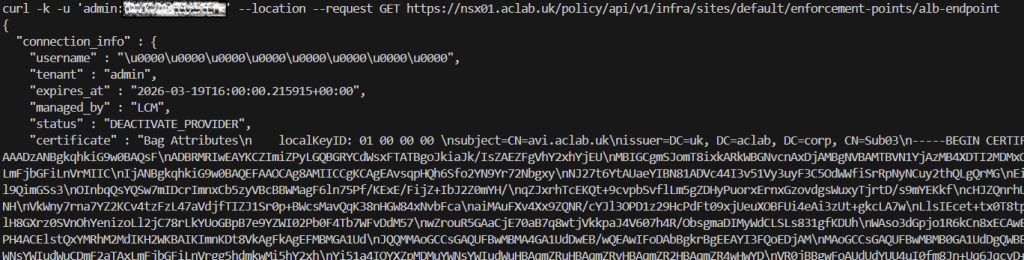
Once the certificate has changed, in SDDC manager > Inventory > Workload Domains > Select workload domain > Certificates. As we did the prep work for the trust, the NSX ALB section will show updated and the static Active.

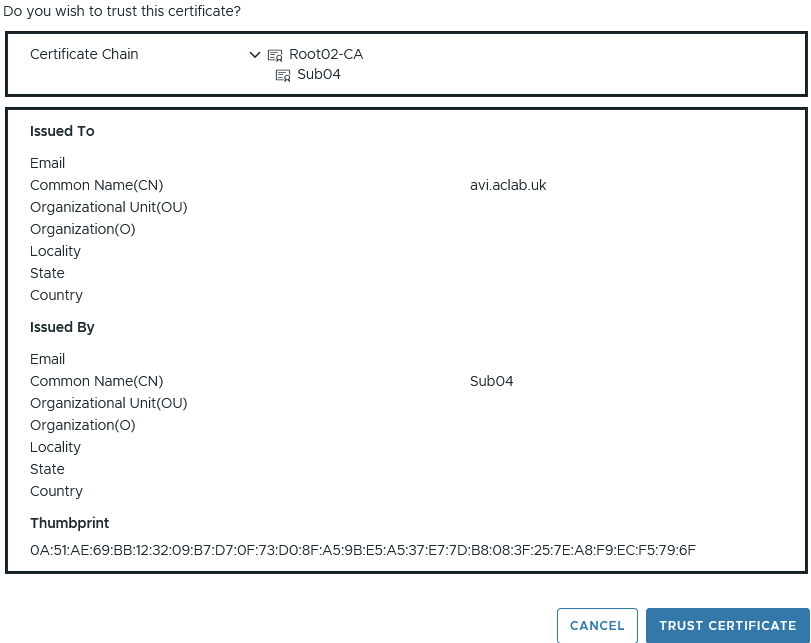
Had we not completed the trust configuration, the connection would have shown as below. We would have to click Review, then manually trust the chain, as shown below.
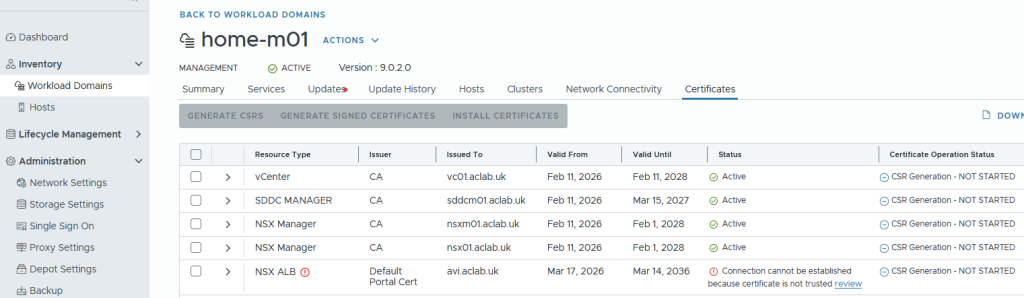
Configure IPAM and DNS Profiles
Next, from templates > IPAM/DNS Profiles, create a basic IPAM profile. Ignore networks and clouds for now. Click save.

Also, create a basic AVI DNS profile. Set the domain name to a subdomain. This will be used via a DNS delegation later. The default TTL is 30 seconds, making DNS cache short-lived. Click save.

They will then both show.

Configure NSX Cloud for NSX Classic Networking
Configure AVI Tier-1 Router and Segment
From NSX Manager, create a tier-1 gateway for AVI, attach it to the tier-0 gateway, edge cluster and enable connected segment route advertisement.

Create an AVI virtual server segment and attach it to the AVI tier-1 gateway. I have allocated a /24 CIDR, which will allow for more than enough virtual server addresses for my lab environment.
We will only be using this subnet for an AVI DNS listener to automatically resolve addresses from deployed virtual servers; it can also be tied into GSLB if you have more than one AVI deployment spread across various geographies. Or any other infrastructure services you need load balancing for.

Configure NSX Cloud
From the AVI control plane, go to Infrastructure > Clouds and create a new NSX cloud.

Under General, enter a name and object prefix. I don’t have or want IPv6, so I have disabled it.
If you disable DHCP here, it will break the Tanzu deployment; you will end up (without manual changes) with the Tanzu data NSX segment being unable to obtain an IP address, and the virtual servers will not deploy properly. Hence, leave DHCP enabled.

Under NSX, click Change credentials. Enter the FQDN and select the pre-existing credential. Click connect.

For the management network, the ESX VLAN transport zone was selected and VLAN 101 for the service engine management NIC. Do not select VPC mode as we are configuring AVI for NSX Classic.
You could attach to an NSX management overlay segment, but I think the default VCF Management VLAN is best. There will be a direct connection to the rest of VCF for management purposes.

For the data network, select the T1 gateway and segment we created earlier.

Click add for vCenter servers, click change credentials, enter the address and use the existing credentials. Select the content library which already exists in the environment. Click done.

Select the existing IPAM and DNS profiles. Then add a DNS resolver, entering the DNS server address. Click save to complete the cloud configuration.

After a short while, the cloud static icon will turn from In Progress to Ready.

If you go to operations > events > All events, you can see what’s occurring.


Configure Service Engine Group
From the AVI control plane, go to Infrastructure > Cloud Resources > Service Engine Group > select the cloud we created earlier and edit the Default-Group. This becomes the template from which the Tanzu supervisor service engine groups are cloned.

Modify the placement settings.
- Configure the control plane to have enough service engines for your environment. In my lab, I have 2 active service engines with 1 in reserve for HA failover capacity. Read this article to understand what kind of performance to expect from the service engines.
- Enable service engines to self-elect without the control plane.
- Enabled distributed placement, meaning the virtual servers will spread across all available service engines, rather than using additional service engines only when the max virtual server value is reached, which is by default 4. This means we spread the load across the SE pool immediately for linear scaling and better performance.

You can also prefix the AVI service engines for easier visibility. This will link up with the object prefix on the cloud, the final prefix will be m01_avi, i.e. the service engine will become m01_avi-se-<5 random letters>
Everything else can remain default; click save.
Configure NSX Cloud Networks
Next, we will create the IP pools. To do this, go to infrastructure> cloud resources > networks > select the NSX cloud. Edit the avi-vs network.

Disable DHCP and IPv6 Auto Configuration. These are not enabled in my lab environment.

Edit the subnet, add a subnet prefix and add a static IP range. Click save and save again.

Edit the management VLAN segment network.

Add a subnet, set the subnet prefix and add a static range. As I have restricted the number of service engines to 3, I only need a small number of addresses. You will need an IP address per service engine. Click save on both subnet and network screens.

The network screen should now show one for management and another for the virtual servers.

Configure VRF Routing
From infrastructure > cloud resources > VRF context, select the NSX cloud, then edit the home-m01-t1-avi VRF.

Under static route, add the default gateway of the NSX AVI segment we added earlier. Click save.

Configure AVI DNS Listener
Next, we will create a DNS virtual server to act as a listener for the avi.aclab.uk subdomain we added to the DNS profile earlier. This is the address we will forward requests to from the internal network, so we can automatically resolve virtual servers created in the AVI load balancer.
First, go to templates > profiles > IPAM/DNS Profiles > edit the IPAM profile> select the NSX cloud and add the avi-vs network. Click save.

Go to application > virtual services > create virtual service > advanced setup.

Give the virtual server a name, i.e. dns-avi-listener-vs. Select DNS as the application type and use the default System-DNS profile.

Under cloud infrastructure, click the Set cloud and VRF button and then set the NSX cloud and T1-AVI VRF context.

Set the Default-Group service engine group.

Under Services, click Create on the three dots.

Add a VIP and select the avi-vs network and subnet. Click save.

Click add on DNS and enter DNS as the name. This will become “adns.avi.aclab.uk” aka authoritative DNS. Click save.

Give the virtual server a coherent name, i.e, dns-avi-listener-vs-vip. Click save to go back to the virtual service page.

Under advanced network settings, enable ignore network reachability constraints. Click save.

This will kick off the SE deployment in vSphere for this service engine group.

They will deploy to an AviSeFolder.

The service engine VMs will be homed to the management network and the AVI-VS network. If you want to change this, edit the default SE group, add a vCenter server and specify the folder name.

The virtual server in AVI will go green.

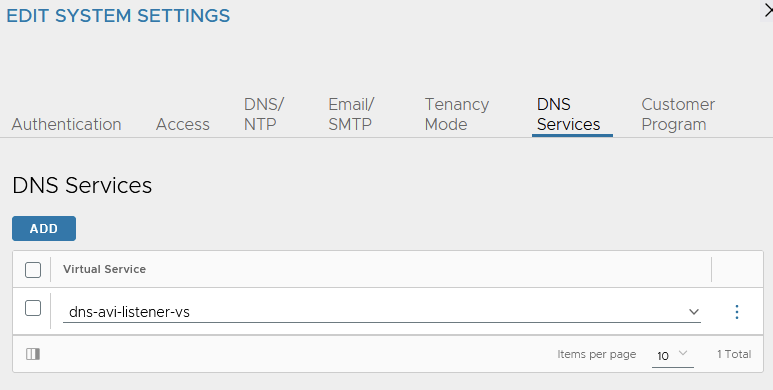
Under administration > system settings > edit > DNS services. Bind the DNS virtual server we just created. Click save.
We can see the segment advertised, and the virtual server responds to pings.


Deploy the Tanzu Supervisor
At this point, everything is plumbed in. We can now deploy the NSX Classic supervisor. Reuse the JSON file from the Tanzu with Classic deployment NSX Load Balancer article.
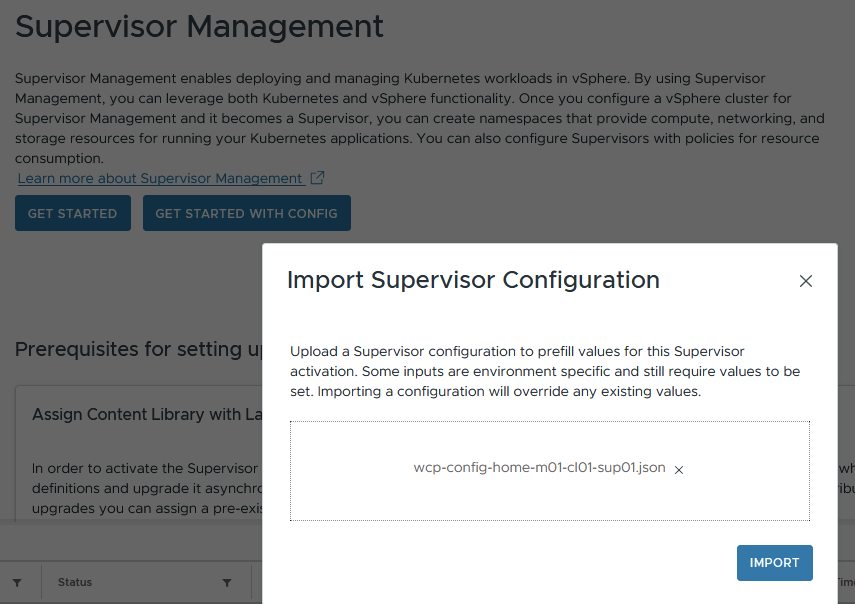
Next, next, next, etc, through the pre-populated supervisor wizard. Wait for everything to complete and watch progress as normal.


Validate the Tanzu Supervisor
The supervisor load balancing VIPs for the Kube API, CLI download page and container storage interface are now on AVI, not inside the NSX integrated load balancer.

These are allocated from a new data NSX overlay segment automatically created when adding the supervisor. The IP allocation comes from DHCP within the NSX data segment. The IP for the data network is a /28 within the private carrier-grade NAT space of 100.64.0.0/10. This is automatically allocated.


This can be seen in vSphere as a vNIC attachment against the service engines as part of a new service engine group created as part of the stand-up.


Each AVI VIP will have a corresponding static route configured on a new Tier-1 Gateway.


The next hop of the static routes from Tier-1 is the AVI service engine data segment NIC’s. The static routes will change dynamically based on the health and configuration of the service engines.
With our distributed configuration, the virtual servers will spread across different SE’s. If an SE fails or is replaced by a maintenance procedure, the virtual servers will be re-allocated and the static routes updated accordingly. All of this is automatic and built into the architecture.

NSX will retain its distributed load balancer for internal cluster IP’s.

The distributed load balancer is used for Kubernetes services of type ClusterIP within the Supervisor cluster.

The server pool members are all within the 10.167.0.0/16 network, which we designated as the Namespace network in the Supervisor JSON file.

This is a /28 overlay segment allocated for it, from the broader 10.167.0.0/16. This is used purely for internal communication within Kubernetes. It’s where eth1 attaches for the supervisor nodes.

You can map these to the services inside Kubernetes by looking at services and endpoint slices.

Within the Tier-1 gateway, there is a route advertisement rule denying this from being advertised.

This means to reach the supervisor node directly, you would use eth0, which is attached to the management VLAN.

Additional Namespaces
For every new namespace in the supervisor cluster, the following is added.
- A dedicated AVI data segment with a /28 carved out of 100.64.0.0/10. This is added as an AVI cloud network with DHCP enabled and becomes the attachment point for the service engines. It’s also the next hop for each AVI load balancer VIP on the associated Tier-1 Gateway static routes.
- A dedicated “seg-domain” segment with the namespace name appended. This is where vSphere pods are attached for their networking.
- A dedicated Tier-1 Gateway with the above two segments attached.
- Route Advertisement Rules denying the AVI Data segment from being advertised out to the wider network.
- Two no SNAT policies, if we configure a NAT-based VKS cluster, then another rule will be added as required.
- A dedicated AVI VRF context.
- Each additional namespace shares the common AVI domain/supervisor service engine group and the ingress CIDR subnet.
AVI DNS Setup
We want to be able to resolve virtual services that have an associated DNS record. To make this work within the lab in an integrated way, we need to delegate the zone “avi.aclab.uk” from our primary DNS server to the AVI DNS listener VIP. We can do this on MikroTik or within Active Directory.
For the initial test, I added a static DNS record to the AVI ADNS VIP.

For MikroTik, we add the following configuration. This will forward anything within “avi.aclab.uk” to the AVI authoritative DNS VIP.
## add a forwarder for the avi dns vip
/ip dns forwarders add dns-servers=10.166.110.1 name=avi-adns-vip verify-doh-cert=no

## add a fwd record, linking it to the forwarder
/ip dns static add comment="AVI ADNS Delgation" forward-to=avi-adns-vip name=avi.aclab.uk type=FWD
For Active Directory, we can add a delegated DNS zone to the primary zone.
## add a dns record to use for the delegated name server
Add-DnsServerResourceRecordA -Name avi-adns-vs -ZoneName corp.aclab.uk -IPv4Address 10.166.110.1

## add the primary dns zone
Add-DnsServerPrimaryZone -Name aclab.uk -ReplicationScope forest

## delegate the avi subdomain
Add-DnsServerZoneDelegation -Name aclab.uk -ChildZoneName avi  -NameServer avi-adns-vs.corp.aclab.uk -IPAddress 10.166.110.1

## test
nslookup test.avi.aclab.uk

Or we can add a conditional forwarder.
## add a delgated conditional forwarder
Add-DnsServerConditionalForwarderZone -Name avi.aclab.uk -ReplicationScope forest -MasterServers 10.166.110.1
nslookup test.avi.aclab.uk

## test
nslookup test.avi.aclab.uk

VKS Deployment
As with all of the other articles for Tanzu, I created a new namespace “vks-clusters” and deployed a VKS cluster wiht routable pods as per this GitHub YAML specification. This is the same YAML spec that was used for the Tanzu with NSX Classic networking article.

For the VKS clusters namespace, we now have a Tier-1 gateway with three linked segments.

There is an AVI data segment on a 100.65.0.1/28 subnet, which will be used to attach the service engines, and will be the next hop for the static routes which will be created on the Tier-1 gateway.
There is a “seg-domain” segment, which is a /28 carved out for vSphere pods.
There is also a “vnet-domain” segment, which is another /28 segment carved out for the VKS control plane and worker nodes.

The first static route below is for the Kubernetes API VIP, with a next hop of the AVI service engine data IP hosting the VIP. The second and third routes are for the podCIDR addresses within the control plane and worker nodes. With Antrea, each node gets allocated a /24 from the namespace network.

Within the AVI load balancer, there is a VIP for the Kubernetes API. The real servers for this are on the namespace network, which is the “vnet-domain” segment where the control plane nodes are attached, which host the kube-api static pods on TCP 6443.

Deploy VKS Application
We will deploy an application as a vSphere pod to test the behaviour. For this, we will reuse an application manifest from GitHub. I’ll deploy it as-is, then patch the service to LoadBalancer, which will create a Layer 4 AVI VIP.
k apply -f nginx-unprivileged-minimal.yaml
k patch svc nginx-example-01-svc -n app01-dev -p '{"spec": {"type": "LoadBalancer"}}'

With the services of type LoadBalancer within VKS, the virtual server VIP is allocated from the Ingress CIDR. Server address is based on a worker node port, not the routable pod address. This means NAT and IP tables via kube-proxy are in use, and the routing path is suboptimal.


The VIP is reachable via my browser outside of NSX.

To leverage routable pods, we need AKO. I will go into more detail on this subject later, but for now, here is a basic configuration for NSX Classic. The helm values file for AKO is here. A very basic ingress object to confirm behaviour is here.
# deploy ako
helm upgrade --install avi-ako oci://projects.packages.broadcom.com/ako/helm-charts/ako --version 2.1.3 -f nsx-classic-values.yaml --set avicredentials.password=<avi-ctrl-password> --namespace=avi-system --create-namespace
helm list -n avi-system
k label ns avi-system pod-security.kubernetes.io/enforce=baseline

# deployment confirm
k get pods,sts,deploy -o wide -n avi-system
k logs -n avi-system ako-0 -c ako
k logs -n avi-system ako-0 -c ako-gateway-api
k get ingressclass

## deploy basic ingress
nginx-unprivileged-minimal-ingress.yaml
This attaches the load balancing server address as 10.167.2.16, which is a routable pod address. Reachable via the NSX SDN, this is an optimal path as no NAT is required.


Deploy vSphere Pod Application
If we switch to the supervisor and deploy the application, we can see vSphere pods in action. For this, I created a “app01-dev” namespace in the supervisor, then ran:
k apply -f nginx-unprivileged-minimal.yamlAs this is vSphere pods, they show in vSphere, and the containers execute in a CRX virtual machine.

The supervisor cluster has no IngressClass; you can check this via the supervisor node as root.

However, the AKO operator is deployed into the vmware-system-ako namespace. This is detailed in the documentation here. There is a deployment with a manager and an infra container inside the pod.

You can check the AKO container logs using the commands below.
k logs -n vmware-system-ako deploy/vmware-system-ako-ako-controller-manager -c infra -f
k logs -n vmware-system-ako deploy/vmware-system-ako-ako-controller-manager -c manager -f
We can connect to the application at either L4 using a service of type LoadBalancer or at L7 using an Ingress object. For layer 4, we can patch the service to type LoadBalancer.
k patch svc nginx-example-01-svc -n app01-dev -p '{"spec": {"type": "LoadBalancer"}}'
k get svc,pods,endpointslice,nodes -o wide
This correctly attaches to the AVI with a Node Port. This means NAT and IP tables via kube-proxy are in use, and the routing path is suboptimal.

For L7 connectivity, we need to deploy an ingress. There is a basic manifest in GitHub that we can use. If we do that whilst also watching the infra container logs, we can observe the behaviour.
## capture the infra container logs, run from a supervisor node
k logs -n vmware-system-ako deploy/vmware-system-ako-ako-controller-manager -c manager -f

## patch service back to ClusterIP
k patch svc nginx-example-01-svc -n app01-dev -p '{"spec": {"type": "ClusterIP"}}'

## deploy the ingress object to attach to the app service object
k apply -f nginx-unprivileged-minimal-ingress.yaml

## check the ingress is attached to the service and endpoints
k describe ing
k get svc,endpointslice

## check resolution works ok
dig +short nginx-example-01.avi.aclab.uk
If you experience issues, remember that the AVI will not work properly if you have the same host FQDN elsewhere.


From an AVI VS point of view, we have a parent-child setup with a policy set.

The parent VS is attached to the ingress on 10.168.0.5, which resides in the Ingress CIDR of the supervisor.
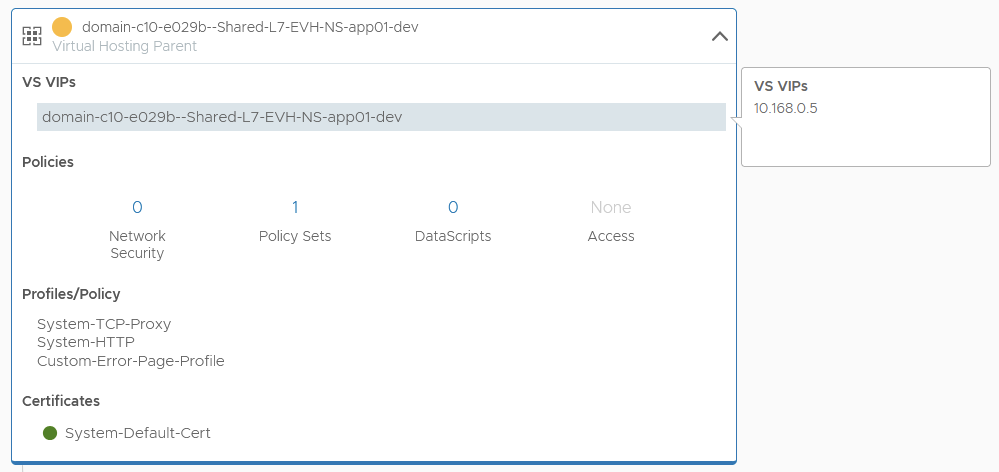
The child VS has the routable podCIDR address, which is an optimal path.

We can confirm this by looking at the pod address, which returns 10.167.0.66, which is the server address on the child virtual server.
k get pod -o wide
Final Topology
The topology as a whole looks like this.

Conclusion
This concludes part #1 of AVI integration with Tanzu. Next up in part #2 is NSX VPC networking with AVI. I’ll write this when I find time to flatten and rebuild the lab.
