
In this article, I will unpack the use of AVI Kubernetes Operator (AKO) alongside Certificate Manager and External DNS. We will deploy an application that will allow us to leverage Ingress and Gateway API. Everything will be automatically plumbed in with certificates and production-ready DNS aliases.
The application is used with my clients as a post-platform deployment test; it’s simple in its function but has proven useful many times as a baseline. For years, I’ve had a set of static manifests, but recently decided to package them as a Helm chart so they can be used more easily across different environments. As this is Helm, we can also rapidly switch between Ingress and Gateway API by simply amending the values file.
The helm chart is pushed into the public Docker OCI registry so it can be used anywhere within Docker’s usage constraints of 100 pulls every 6 hrs per IPv4/6 address. The raw Helm manifests are also available on my GitHub repository here.
Navigation
- Target Topology
- DNS Summary
- Preperation
- AKO Custom Resource Definitions
- Deploy Application
- Ingress
- Gateway API
- Conclusion
- What’s next
Target Topology
This is the design we are aiming for. We are also laying the foundation to overlay multiple regions with AVI GSLB. I will cover this aspect in a future article.

DNS Summary
Below summarises the various DNS records; you can come back to this table as you unpick the article in full.
| Record Type | Host | Value | Deployed Where? | Use Case |
| A | avi-ns01.aclab.uk | 10.166.111.1 | Microsoft AD DNS | An authoritative record on the Microsoft DNS server. Deployed manually. Points to the AVI ADNS VS DNS service. |
| NS | avi.aclab.uk | avi-ns01.aclab.uk. | Microsoft AD DNS | Deployed Manually. The delegation record for “avi.aclab.uk”. |
| CNAME | application01.aclab.uk | app01-lab.avi.aclab.uk. | Microsoft AD DNS | Deployed by External DNS by annotations on Ingress / Gateway / HTTPRoute objects. Production application FQDN that gets resolved by the AVI virtual server deployed with Ingress or HTTPRoute. |
| TXT | region01-aclab-vks-01-cname.application01.aclab.uk | heritage=external-dns,external-dns/owner=region01-aclab-vks-01,external-dns/resource=httproute/dev/app01-aclab-nginx-httproute | Microsoft AD DNS | Deployed by External DNS. Infers external DNS ownership over the CNAME record. |
| A | app01-lab.avi.aclab.uk | AVI VIP Address from VPC External IP Blocks | AVI VS VIP for either Ingress or HTTPRoute | An authoritative record on the AVI load balancer, automatically created by the Ingress or HTTPRoute objects. Ultimate resolution of the application, via the External DNS created CNAME on Microsoft DNS. |
| A | application01.aclab.uk | AVI VIP Address from VPC External IP Blocks | AVI VS VIP for either Ingress or HTTPRoute | An authoritative record on the AVI load balancer, automatically created by the Ingress or HTTPRoute objects. Allows the AVI Load Balancer to accept a CNAME alias and proxy requests by forwarding the alias value as the HTTP Host header received from the client. |
Preperation
We will be using a VKS cluster, which is deployed on VMware Tanzu with VMware Cloud Foundation version 9.0.2. Networking is provided by NSX VPC; the VKS cluster has routable pods backed by a public VPC subnet. All of the steps to stand up the environment are detailed in part #2 of my NSX and AVI Load Balancer series. The specific VKS YAML file used is here.
We are going to deploy Certificate Manager with a new CA issuing certificates from my two-tier Microsoft PKI. This will allow us to perform end-to-end TLS encryption from the client > AVI Load Balancer > Application. This means we will achieve full encryption in transport, at the expense of some CPU resources.
We will deploy Gateway API CRDs as part of the AKO helm chart.
Finally, we will deploy External DNS to automate the creation of production CNAME aliases, which allow automatic client DNS resolution from the deployed virtual servers in AVI.
AVI DNS Subdomains
The production URL for the application is https://application01.aclab.uk, which is a CNAME of https://app01-lab.avi.aclab.uk, hosted within the AVI DNS service.
For this to work, AVI must have both “aclab.uk” and “avi.aclab.uk” domains attached to the AVI DNS profile. This is because we need the client HTTP header of the production URL to be accepted by the AVI virtual server, and the CNAME target address must also exist in the AVI DNS service.
We can summarise connectivity with the following flow.
- The client hits https://application01.aclab.uk in their browser.
- The client performs a DNS request for “application01.aclab.uk”, which is aliased to “app01-lab.avi.aclab.uk”.
- DNS delegation of “avi.aclab.uk” recursively forwards the DNS request to the AVI ADNS service.
- The ADNS service responds with the resolution of “app01-lab.avi.aclab.uk” based on the deployed parent virtual server.
Under Templates > Profiles > IPAM / DNS Profiles > edit the DNS profile and add your domains.

Helm hostname values will determine the DNS configuration. Whatever you set as the first hostname will become the common name on the certificate. All subsequent names become CNAME aliases.

We are going to delegate resolution from our Active Directory DNS server; the base setup for this is explained in part #2 of my NSX and AVI Load Balancer series.
This is what it looks like when fully deployed. An A record is created resolving to the ADNS service in AVI.

A delegated domain is added, pointing at the A record. This ensures anything within “aci.aclab.uk” is sent onward to the AVI ADNS service.

External DNS creates a CNAME for the production URL “application01.aclab.uk” with a target address of “app01-lab.avi.aclab.uk”. As this is within “avi.aclab.uk” the DNS request will be forwarded to the AVI DNS service.

From a client, it looks like this.
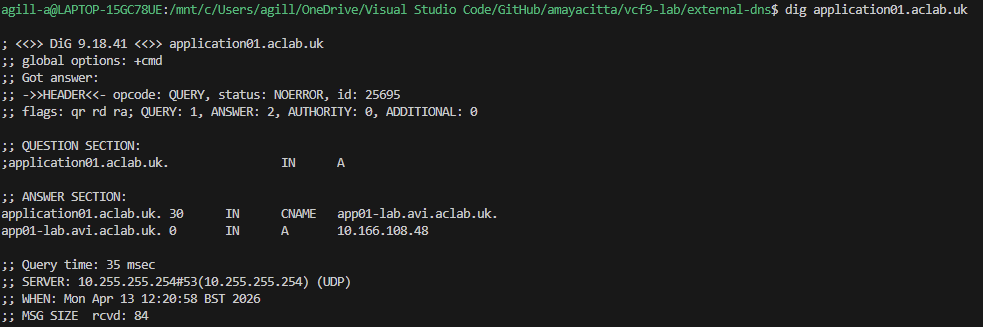
10.166.108.48 is the parent virtual server on the AVI with an application domain name “app01-lab.avi.aclab.uk” attached. Below shows the AVI VS VIP for the parent VS.

Deploy External DNS
For the CNAME to be automatically created as above, we need to deploy and configure External DNS. First of all, make sure our production DNS zone is in place. In my lab, I have aclab.uk, which is replicated forest-wide.

We need a service account in Active Directory, which we will bind to our DNS zone and attach to External DNS for Kerberos authentication.
$password = Read-Host "Enter your password" -AsSecureString
New-ADUser -name svc_externaldns -SamAccountName svc_externaldns -UserPrincipalName svc_externaldns@corp.aclab.uk -ChangePasswordAtLogon $false -Description "Delgated account to manage DNS zones in AD from External DNS in Kubernetes" -Path "OU=Service Accounts,DC=corp,DC=aclab,DC=uk" -Enabled $true -AccountPassword $Password
Next, we will create a delegated AD group with the service account as a member.
New-ADGroup -Name "DNS Zone Administrators - aclab.uk" -GroupScope DomainLocal -Description "Members are granted read and write rights for DNS zone aclab.uk" -Path "OU=Groups,DC=corp,DC=aclab,DC=uk" ; Add-ADGroupMember -Identity "DNS Zone Administrators - aclab.uk" -Members svc_externaldns
We then configure a new ACE and attach it to the existing ACL on the zone. You can use a PowerShell script I created here. We copy the script to C:\Scripts and then run.
ipmo C:\Scripts\set-addnszoneacl.ps1
Set-AdDnsZoneAcl -ZoneName aclab.uk -GroupName "DNS Zone Administrators - aclab.uk" -Scope Forest

Next, we need to create a secret for the service account password. Unfortunately, External DNS will not work with a restricted PSS. We will therefore patch the namespace to baseline.
## create a namespace with a baseline pod security standard
k create ns external-dns
k label ns external-dns pod-security.kubernetes.io/enforce=baseline

## create a secret for the external dns service account
read -sp "Enter your password: " password
kubectl create secret generic externaldns-kerberos-password --from-literal=KRB_PASSWORD=$password -n external-dns
Next, we install the chart, which will use a specific config map for Active Directory and a specific Helm values file.
Note the use of hmac-sha256 Kerberos ciphers in the Helm values file. Without this, more recent versions of Windows will not permit the Kerberos ticket, and DNS record creation will fail.
## create a configuration map for kerberos
k apply -f configmap-extdns-kerb.yaml

## add the external dns helm chart
helm repo add external-dns https://kubernetes-sigs.github.io/external-dns/

## find the latest version
helm search repo external-dns

## deploy the latest version with the values file
helm upgrade --install external-dns external-dns/external-dns --namespace external-dns --version 1.20.0 --values dev-values.yaml
Confirm the pod is running and check the logs. When the pod stays running and you see the log line “All records are already up to date”, things are good.
## check external-dns is ok
k get pods -n external-dns
k logs -n external-dns deploy/external-dns -f

Deploy Certificate Manager
Next, we need to boot the offline root, which will issue our new issuing certificate. If you want a full guide for this, please review my Perfect PKI series, which unpacks the steps end-to-end.
Next, we will prepare a Linux machine for use with OpenSSL. In my case, I’m using Fedora on Windows Subsystem for Linux.
## install openssl
sudo dnf install openssl -y
Once installed, we need to run the following commands to generate a CSR for the offline root to issue. We can choose to do this multiple times for each VKS cluster; the choice is yours. In my case, I’m only issuing a single subordinate CA certificate for all clusters. The downside to this is that the revocation of the root will affect all environments. If this were a production setup, then I would lean towards issuing one per VKS cluster.
## generate issuing an issuing subca template against a Microsoft PKI
openssl req -newkey 4096 -extensions v3_ca -nodes -addext 1.3.6.1.4.1.311.20.2=ASN1:PRINTABLESTRING:SubCA -subj '/CN=\TanzuSub01/C=UK/ST=Home/L=home/O=ACLAB' -keyout tanzu-sub01-private.pem -out tanzu-sub01.req
Copy the tanzu-sub01.req file to the offline root into C:\temp and run the below.
certreq -submit C:\temp\tanzu-sub01.reqIn the box that pops up, click OK to submit the certificate request to the local CA.

You’ll be presented with the following.

From the Certificate Services console, issue the pending certificate request.

From Issued Certificates, double-click the issued certificate, go to details > copy to file > next > Base64 > next > export the public key back to the C:\Temp folder.
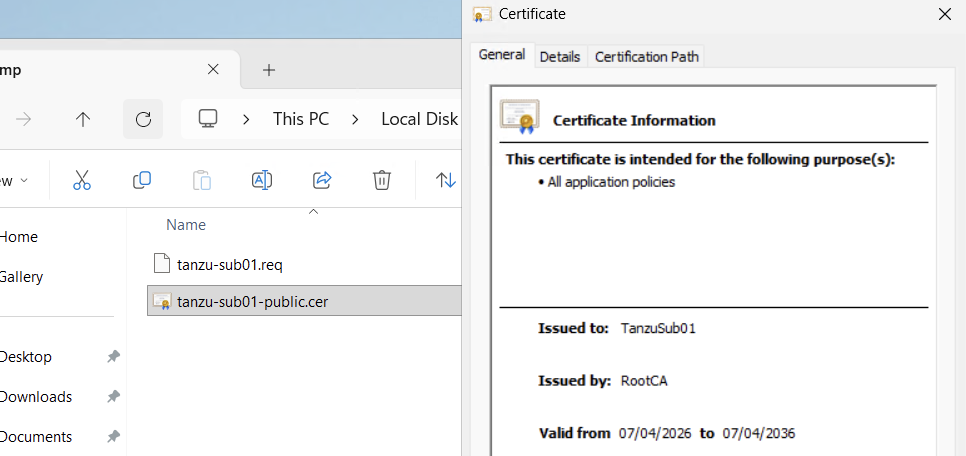
Copy this from the offline root to a safe location and shut down the offline root again. You will now have three files. The request file can be deleted, keep hold of the public and private keys.

Log in to the VKS cluster and deploy Certificate Manager. Additional context is here and here. Helm is a package manager for Kubernetes, much like DNF is for Linux.
# create the vks context and switch to it
vcf context create aclab-vks-01 --endpoint sup01.aclab.uk --username administrator@vsphere.local --insecure-skip-tls-verify --workload-cluster-name aclab-vks-01 --workload-cluster-namespace vks-clusters
vcf context use aclab-vks-01:aclab-vks-01

# install helm
curl -fsSL -o get_helm.sh https://raw.githubusercontent.com/helm/helm/main/scripts/get-helm-4
chmod 700 get_helm.sh
./get_helm.sh
rm get_helm.sh

# find the latest version of certificate manager
helm show chart oci://quay.io/jetstack/charts/cert-manager | grep version

# install certificate manager setting the latest version found above
helm install \
  cert-manager oci://quay.io/jetstack/charts/cert-manager \
  --version v1.20.1 \
  --namespace cert-manager \
  --create-namespace \
  --set crds.enabled=true
Now that the basics are done, we need to create what’s called a ClusterIssuer in order to use our offline root to generate certificates and secrets. Certificate Manager has two Issuer types: Issuer will issue certificates within a namespace, whereas a ClusterIssuer will issue certificates across the entire cluster. For this scenario, we will deploy a ClusterIssuer.
We are using the newly created Subordinate Issuing public and private keys, placing them into a secret and assigning them to the ClusterIssuer for use.
# generate variables for the public and private key encoded in base64
publickey=$(cat tanzu-sub01-public.cer | base64 -w0)
privatekey=$(cat tanzu-sub01-private.pem | base64 -w0)

# create secret and clusterissuer manifest
cat <<EOF | kubectl apply -f -
apiVersion: v1
kind: Secret
metadata:
  name: tanzu-sub01-tls-secret
  namespace: cert-manager
data:
  tls.crt: $publickey
  tls.key: $privatekey
---
apiVersion: cert-manager.io/v1
kind: ClusterIssuer
metadata:
  name: tanzu-sub01-clusterissuer
  namespace: cert-manager
spec:
  ca:
    secretName: tanzu-sub01-tls-secret
EOF
Once done, you can check that the ClusterIssuer is ready for use.

Trust the Subordinate Certificate
At this point, we will be able to issue certificates for use with applications, ingress, Gateway API, etc. However, before we do that, we need to trust the new issuing root within the VKS cluster. To do this cat the contents of the public certificate and paste it into the vks cluster manifest.
# grab the public key of the new issuing subordinate
cat tanzu-sub01-public.cer
Place the contents of the public key into the additionalTrustedCAs path in the VKS cluster file. This is already done and pushed into the GitHub repo here.
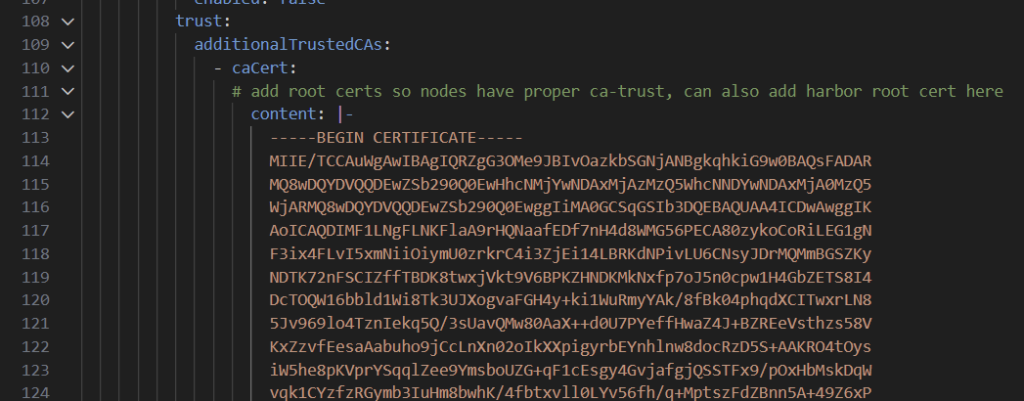
Once done, update the VKS cluster.
# switch to the vks cluster namespace
vcf context use sup01:vks-clusters

# update the vks cluster
k apply -f vks-3.6.0-aclab-antrea-routed-public.yaml

# switch back to the vks cluster
vcf context use aclab-vks-01:aclab-vks-01
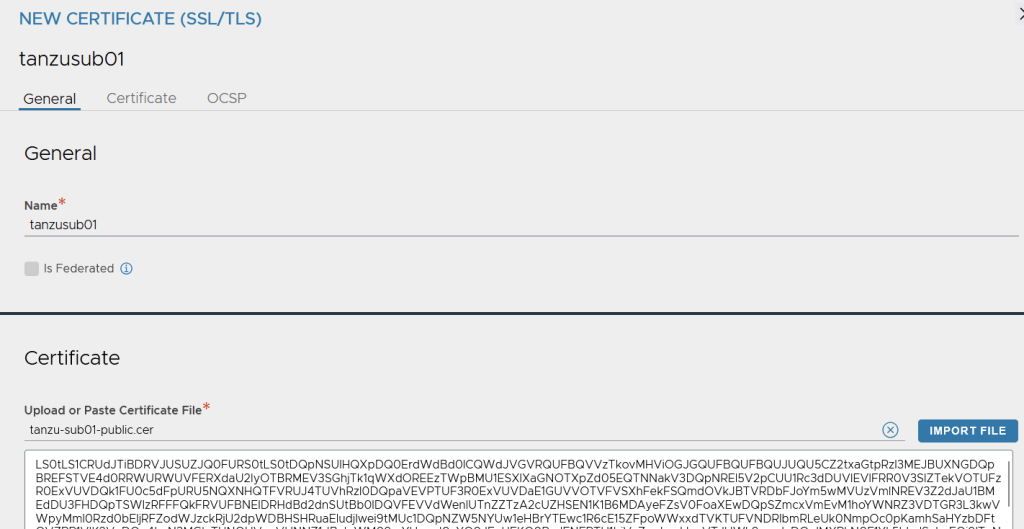
We add the new subordinate root to the AVI control plane. From Templates > Security > SSL/TLS Certificates > Add the new root CA certificate.

Enter the subordinate CA name, and import the public key. Click validate then save.
Additionally, install the new subordinate root within your client environment. This is only going to work if you have control of your client endpoints, for example, via MDM, Active Directory, etc.
If your applications are internet-facing, then you will want to tap Certificate Manager into a public PKI using one of the many issuers. You need to do this as you need the issuing certificate to be automatically trusted on client devices you have no control over. In my case, I simply installed the root into my Firefox browser.

Deploy AVI Kubernetes Operator
We now need to configure AKO. First of all, we want to set the default TLS certificate for Ingress. This is done by pre-creating a secret in the avi-system namespace. We can use Certificate Manager to do this; the manifest is on GitHub here.
# deploy a certificate and check the secret is issued
k create ns avi-system
k label ns avi-system pod-security.kubernetes.io/enforce=baseline
k apply -f cert-manager/avi-default-ingress-cert.yaml
k get secret,certificate -n avi-system
We can now see a certificate as ready and the generated secret.

We deploy AKO using Helm. The reference values file is here. You will need to update this for your environment; it should be pretty straightforward. For our VPC scenario, you need to grab the VPC gateway where the VKS cluster is deployed. You can do this by selecting “Copy Path to Clipboard” from the NSX manager against the VPC gateway.

Once you have populated the values file, we can deploy.
# find the latest version of ako
helm show chart oci://projects.packages.broadcom.com/ako/helm-charts/ako | grep version

# show full values file for reference
helm show values oci://projects.packages.broadcom.com/ako/helm-charts/ako --version 2.1.3 > ako-default-values.yaml

# deploy ako, the namespace is already in place
helm upgrade --install avi-ako oci://projects.packages.broadcom.com/ako/helm-charts/ako --version 2.1.3 -f nsx-vpc-values.yaml --set avicredentials.password=<avi-ctrl-password> --namespace=avi-system
helm list -n avi-system

# deployment confirm
k get pods,sts,deploy -o wide -n avi-system
k logs -n avi-system ako-0 -c ako
k logs -n avi-system ako-0 -c ako-gateway-api
k get ingressclass
Deploy Gateway API CRDs
Gateway API is a replacement for Ingress and is essentially where things will go in the future. Slowly, everything will transition over, and Ingress will eventually be deprecated. You can deploy a Gateway for different namespaces, applications, environments, etc. I tend to deploy one per VKS cluster and share it.
Unfortunately, AKO does not support the use of ReferenceGrants, which would allow us to place Certificates and a Gateway in a dedicated shared namespace and cross-reference HTTPRoutes from other namespaces in the cluster. Doing this helps create a clear separation in the platform. The Gateway, Certificates, and HTTPRoutes can all be managed by different teams using Kubernetes RBAC. Unfortunately, the AKO ignores the ReferenceGrant, and the documentation clearly states no support.
We can check how Gateway API CRDs are deployed by running the following command. This shows that some of the CRDs were deployed as part of the AKO Helm deployment. Unfortunately, AKO does not yet implement a full stack of Gateway API objects; we can only use GatewayClass, Gateway and HTTPRoute. This is quite limited and comes with some challenges, which I will explain. I have tried to use the other objects, and they are simply ignored.
k api-resources | grep gateway.networking
If we manually deploy the latest Gateway API CRDs, you can spot the ones which AKO missed. Instructions for this are here.
# deploy latest cdrs and check api-resources again
k apply --server-side -f https://github.com/kubernetes-sigs/gateway-api/releases/download/v1.5.0/standard-install.yaml
k api-resources | grep gateway.networking
In order to use Gateway API, we need to deploy a Gateway object that will bind to the AKO Gateway Class automatically created as part of the AKO deployment. We can see the class by running the code below.
k get GatewayClass
AKO Custom Resource Definitions
When configuring application load balancing, there are a ton of configuration options we would want to set. Load balancing methods, persistence, authentication, and health checks, to name a few. Although the basic ingress and HTTProute objects do a reasonable job, AKO CRDs allow more granular configurations. You can view all of the CRDs with the following command.
k api-resources | grep ako.vmware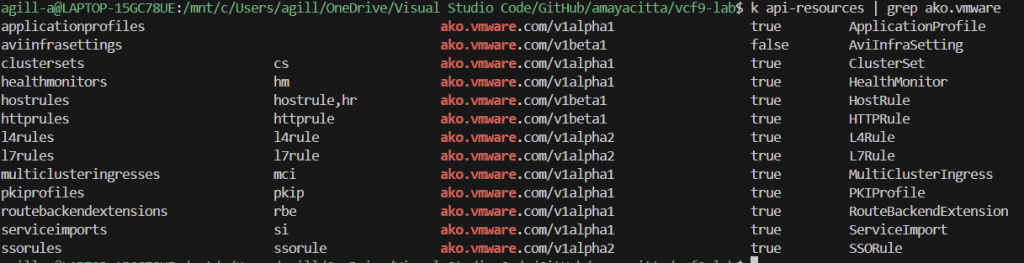
The official AKO CRD documentation is here. Below is a quick summary.
| CRD | Use Case |
| applicationprofiles | Configures an HTTP application profile. In the GUI, this is found under templates > profiles > application. You can configure things like X-Forwarded-For for logging, session cookies, HTTP-HTTPS redirect, HSTS, compression, DDoS, etc. |
| aviinfrasettings | Attaches to the gatewayclass or services of type LoadBalancer, IngressClass, Ingress, HTTPRoute, Namespace to control things like the Service Engine Group, VIP network, BGP peering etc, at a more granular level than the generic AKO settings. |
| clustersets | If you kubectl explain clusersets.spec the manual says cluster name and kubeconfig file for all clusters bound, which sounds like it relates to the multi-cluster AVI operator to connect to multiple clusters in various regions. |
| healthmonitors | Custom health checks for backend settings. These are found in the GUI under Templates > Profiles > Health monitors. You would normally check content or functionality within the site, in our case we can check /healthz within NGINX which will return HTTP 200. |
| hostrules | Sets virtual host properties; the attachment is matched by the FQDN and path mappings in the ingress or HTTPRoute objects. If you edit a virtual server in the GUI, it’s essentially all of the base options inside. |
| httprules | Configures the settings found within a pool, such as the load balancing algorithm, reencrypt, mTLS, health monitors etc. |
| l4rules | Configures the settings within L4 virtual servers, which are defined when deploying a Kubernetes service of type LoadBalancer. If you edit a standard L4 service, you can see all the flags. |
| l7rules | Configures the setting within L7 virtual services, i.e. HTTP/S virtual servers which are attached through Ingress or HTTPRoutes. Things like WAF policy etc. |
| multiclusteringresses | This is for a multi-cluster AVI operator when you are leveraging GSLB to manage multiple Kubernetes clusters. In this case, you would have multiple regional clusters, each with its own GSLB site, all managed from the one global DNS namespace. This is explained here. |
| pkiprofiles | To control backend TLS verification for TLS re-encryption, for example. By itself, it doesn’t do much; it’s usually attached to, for example, a httprule or RouteBackendExtension. The profiles are found under Templates > Security > PKI profile. |
| routebackendextensions | Control Gateway API HTTPRoutes, to control, for example, the load balancing algorithm or TLS verification settings. They ultimately control the pool settings. |
| serviceimports | If you kubectl explain serviceimports.spec, the manual says, cluster from which this service is imported from, which sounds like it relates to the multi-cluster AVI operator to import services from other clusters. |
| ssorules | Control OAuth and SAML settings for L7 virtual services, i.e. Ingress or HTTPRoute. The settings in the GUI are found under Templates > Security > SSO Policy. |
Deploy Application
We are now ready to deploy our NGINX application. The following endpoints are present:
- /healthz is presented as a health check mechanism for probes within the deployment.
- / will present a white web page.
- /pink will present a pink web page.
- /blue will present a light blue web page.
- /green will present a light green web page.
The helm chart will deploy multiple deployments, services, pods and so on. A single Ingress or HTTPRoute will connect to each of the paths across the various back-end pods. This represents a production-like application which shares the same URL. I mainly wrote it to better my understanding of Helm.
Additionally, a config map hardens NGINX to only accept TLS 1.2 and 1.3. HTTP is presented on 8080, and HTTPS is presented on 8443; both are allowed via the network policy. This allows us to play with TLS offload, passthrough and re-encrypt on the load balancer.
Ingress
To deploy the test application with ingress, run the following commands. You will need to enable ingress.enabled in the Helm values file before deploying. By default, neither an HTTPRoute or Ingress will deploy.

Also, set the hostnames you want to use. I’ve left the default Helm values file with the ones I use for my lab.

# grab the values file and make the required modification
helm show values oci://registry-1.docker.io/amayacitta/aclab-nginx > dev-values.yaml

# deploy with the edited values file
helm upgrade --install app01 oci://registry-1.docker.io/amayacitta/aclab-nginx --version 0.1.2 --namespace=dev --create-namespace --values dev-values.yaml
With general Ingress, the expectation is that the application runs unencrypted and the load balancer terminates TLS from the client.

It’s also possible to change this behaviour with the use of a passthrough.ako.vmware.com annotation on the Ingress object. Once added, we can pass through, aka bridge the TLS session through the load balancer, straight to the application backend.

Doing this will mean the packets are encrypted as they pass through the AVI, which breaks WAF inspection capabilities; however, it does ensure full TLS in transport.

A smarter route is to enable re-encryption, which means the client will terminate its TLS session on the load balancer, then the load balancer, on behalf of the client, will also perform a second TLS handshake to the back-end server.

To do this null ingress.annotations in the Helm values file.

Then set up an HTTPRule CDR that maps the FQDN and Path from the Ingress object. In the AKO CDR, we will enable re-encryption by setting the httprule.enabled flag in the Helm chart. You can additionally specify a TLS Profile, Application Persistence and Load Balancing algorithm. These will need to exist on the AVI control plane.

When your application is in use, the TLS profile is essential for attack surface reduction by constraining protocols and ciphers to the latest security standards. Qualys SSL Labs is an excellent tool for testing the security of your sites and keeping the configuration up to date as things evolve.
After the modifications are complete, perform an upgrade of the Helm chart. This will remove the annotation and deploy the httpRule.
# upgrade the application with the edited values file
helm upgrade --install app01 oci://registry-1.docker.io/amayacitta/aclab-nginx --version 0.1.2 --namespace=dev --create-namespace --values dev-values.yaml
An SSL profile will be attached to the pool, which enables re-encryption.

We then have full end-to-end encryption, and the application works. Additionally, the AVI will have access to the payload and can realise full WAF capabilities. You can test the various parts of the test application by clicking the various links.
DNS is forwarded from my client to the AVI for each hostname, including the additional CNAME Alias which External DNS has created for us.

To add the additional aliases to AVI, we used an AKO HostRule object, which automatically adds them to the parent VS VIP.

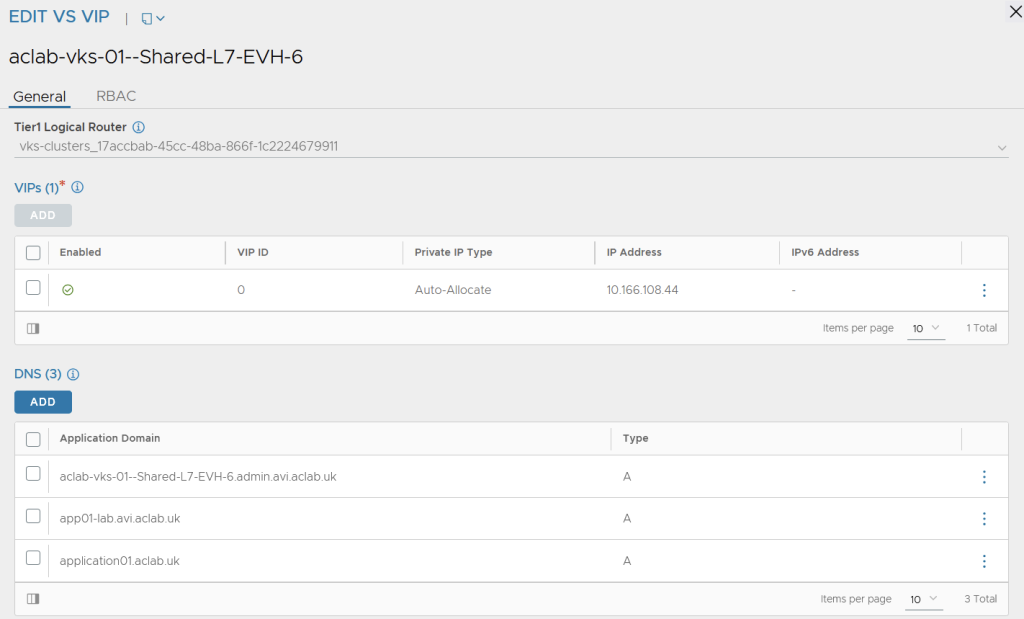
The certificate and all other configurations align nicely, and I get a good experience from my browser.
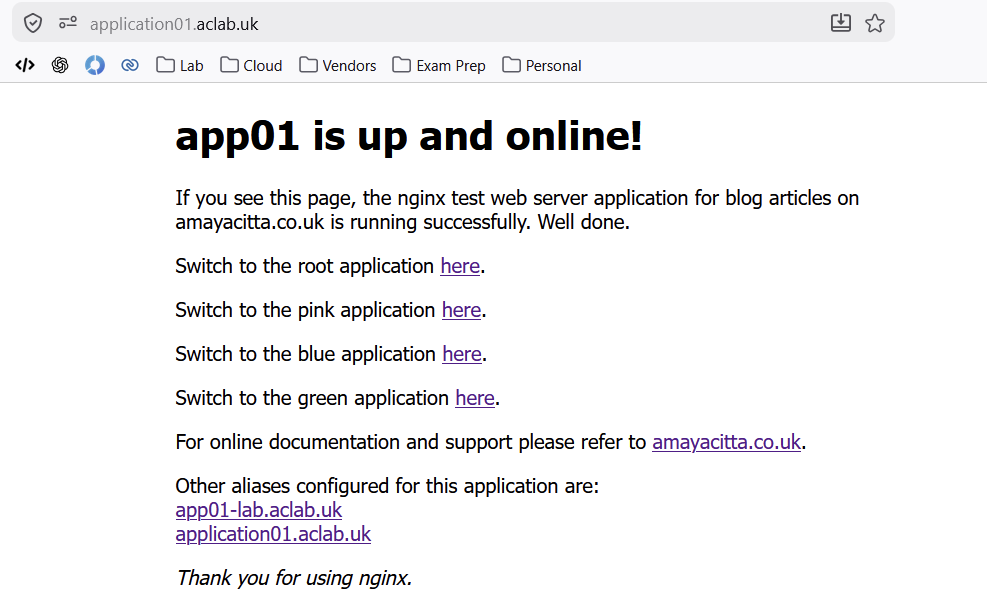
From AVI, we see a parent VS.

The parent VS VIP has the aliases attached due to the HostRule.

The child VS is configured for all parts of the application. Additionally, a WAF policy is attached via the HostRule. Take note that the pool servers are the routable pod addresses, which is an optimal path with no NodePort DNAT requirement.

Gateway API
To deploy the Gateway API we need to set ingress.enabled to false and HTTPRoute to true. We can leave the HostRule and HTTPRule in place, as they are ignored by AKO for HTTPRoutes.

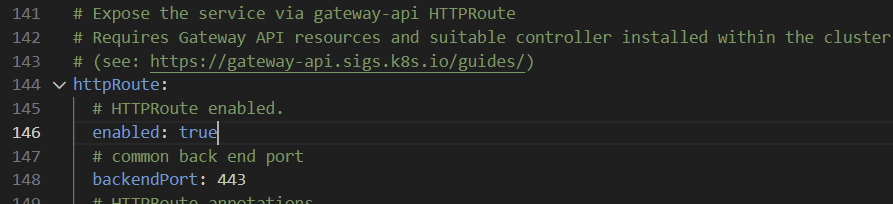
Once done, we can update the application using Helm, which will delete the ingress resource and deploy an appropriate HTTPRoute resource.
helm upgrade --install app01 oci://registry-1.docker.io/amayacitta/aclab-nginx --version 0.1.2 --namespace=dev --create-namespace --values dev-values.yamlWithin the Gateway API specification, broadly, the following TLS termination types are available. Given that our back-end application is already running TLS, we would usually deploy a TLSRoute. However, AKO does not yet support this implementation.
| Listener Protocol | TLS Mode | Route Type Supported |
| TLS | Passthrough | TLSRoute |
| TLS | Terminate | TLSRoute (extended) |
| HTTPS | Terminate | HTTPRoute |
| GRPC | Terminate | GRPCRoute |
There are a couple of workarounds for this.
- Using HTTPRoute with a BackendTLSPolicy. This allows you to specify the TLS configuration of the connection from the Gateway to the backend application.
- Use the AVI HTTPRule CRD to configure a TLS
Unfortunately, AKO does not permit the use of BackendTLSPolicy objects, so the only possible route we have is the HTTPRule. When not configured properly, we get this error. This means that the HTTPRoute back end is doing an unencrypted connect to an encrypted port, i.e. the back end service is connecting to TLS 8443, which is not supported.
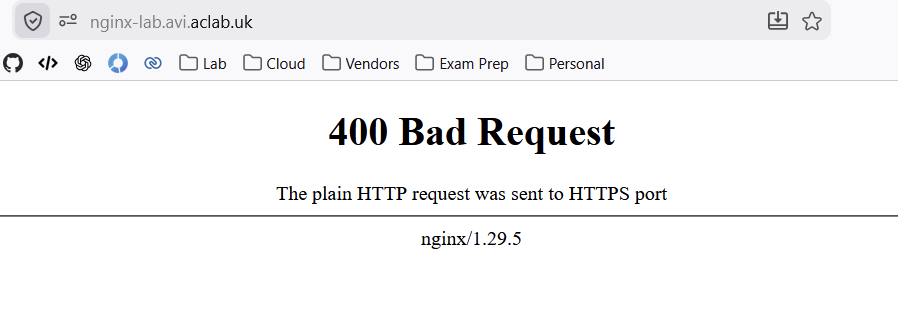
If we manually configure a TLS policy on the virtual server, everything works as expected.

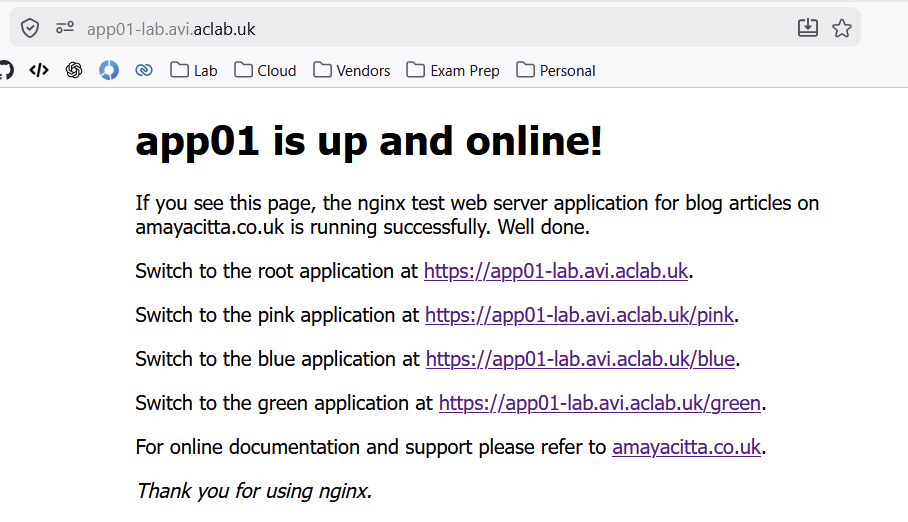
To do this via AKO, just like with Ingress, we need the HTTPRule to attach to the HTTPRoute and automatically configure the pool. If we describe the HTTPRule, we see it accepted, but it does not attach to the HTTPRoute.
Here is another limitation within the current AKO version. According to the documentation, HTTPRules will only apply to Ingress or Route objects (Routes are Red Hat OpenShift objects), not to Gateway API HTTPRoutes.

The only way to get this working without manual intervention is to change the service to connect to HTTP 8080 instead of HTTPS 8443, at which point we are in effect doing termination mode.

The Helm chart defaults to this configuration in the service template file, so there is nothing to do here.

With everything in place, our parent VS Gateway has the correct DNS names attached.

We have a child VS for each part of the application. Each child VS pool connects directly to the routable pod subnet. This is an optimal path that requires no NodePort DNAT.

One of the four deployed child virtual servers deploys as follows. Take note that the pool servers are the routable pod addresses, which is an optimal path with no NodePort DNAT requirement.

The CNAME Alias created by External DNS automatically resolves, and I have no issues from my browser.


Conclusion
For now, this ends the article on AVI AKO. As we have seen, AKO Ingress has a much more mature feature set. VMware need to play catch-up with the latest Kubernetes patterns and work towards better parity with upstream Gateway API. For example, today, F5 NGINX Gateway Fabric offers a much more mature implementation and is way ahead of VMware in this regard.
If deploying a greenfield platform today, I recommend starting with Gateway API, unless the feature set doesn’t align with your needs. Ingress is more mature but is also planned for depreciation at some point in the future.
For Ingress, we could achieve end-to-end TLS in transport without spawning multiple parent virtual servers, allowing production-ready DNS aliasing. We could also leverage fine-grained AKO CRDs to integrate load-balancing algorithms, persistence profiles, WAF and so on.
For Gateway API, we were only able to achieve AVI TLS termination using HTTPRoute. None of the AKO CRDs were attachable, leaving a generic configuration. We were, however, able to maintain a single parent virtual server, allowing us to leverage production-ready DNS aliasing. This is expected as Gateway API was built from the ground up for this.
To be fair to VMware, certain CRDs are attachable to HTTPRoutes in a different way. The only one I’m aware of is pool health checks, which attach via a backend extensionRef filter as documented here. Perhaps over time more will be attachable via this route.
What’s next
I will continue to develop the helm chart with health checks, more comprehensive WAF and other production-ready configurations. Additionally, development of the base AVI configuration using Terraform or OpenTofu will help save the clickathon.
I will endeavour to create part #2 of AKO with a second VKS cluster. Avi Multi-Cluster Kubernetes Operator (AMKO) can then be integrated for multi-cluster global server load balancing. In my lab, everything is in one box, but I’ll configure VKS clusters as if they are in different regions. I’m very familiar with GSLB on other vendors such as F5, NetScaler and KEMP, so I’m keen to learn what AVI brings to the world of GSLB application delivery.
I hope this article was helpful for your own understanding.
