
Here is a topic which comes up time and time again with my clients. It’s usually phrased as “How can I safely renew the root certificates?” – Hopefully, this question isn’t coming with only a few weeks before the current certificate expiry date, as we need to plan the change. First, I will give my high-level thoughts on the subject, and then I’ll take you through the actual renewal process.
Four Part Series
This article is part of a four-part series.
- Part #1 – Deploying and Understanding PKI
- Part #2 – How to safely renew root certificates
- Part #3 – How to upgrade the CA Operating Systems
- Part #4 – How to replace an existing PKI hierarchy
Navigation
- Four Part Series
- Planning
- Example Template Migration
- Renewing the Offline Root Certificate
- Updating the Offline Root CRL
- Renewing the Subordinate Certificate
- What’s Next?
Planning
It’s an obvious thing to say but is honestly overlooked too often. Before engaging in any form of renewal, first do a quick health check of the system. Probably the most common issue is broken CRL paths; either IIS has a problem, or CDP on the Subordinate is not being published to the correct path. For LDAP things are pretty easy as they align automatically, but for HTTP, there can be misalignment, i.e. the CRL file name in the CRL path is wrong or not publishing to the HTTP virtual directory.
The simple way to know is to run pkiview.msc from one of the Subordinate Servers and check that it reports OK.

The tool will show all published CA servers along with their information, like CDP and AIA paths, and will automatically validate them. If things are not working, you can spot what’s up fairly easily. For HTTP CDP/AIA paths, you can right-click the location, copy to the clipboard and paste it back into a browser. If it doesn’t work, diagnose from here, tracking down what server it is on and how it’s being published. Load IIS and check that the paths and publishing are correct.

Once things are in a good state, the next thing to do is understand how the CA is being used. The simplest thing you can do is export the CA database to CSV, import it into Excel and create a pivot table. Depending on the size of the database, you can very easily do that from the standard certificate authority console. Right-click on issued certificates and under View, click all records.

Add a filter for expiration date greater than the current time, which it automatically populates.

Right-click again and export the list, then export to a CSV.


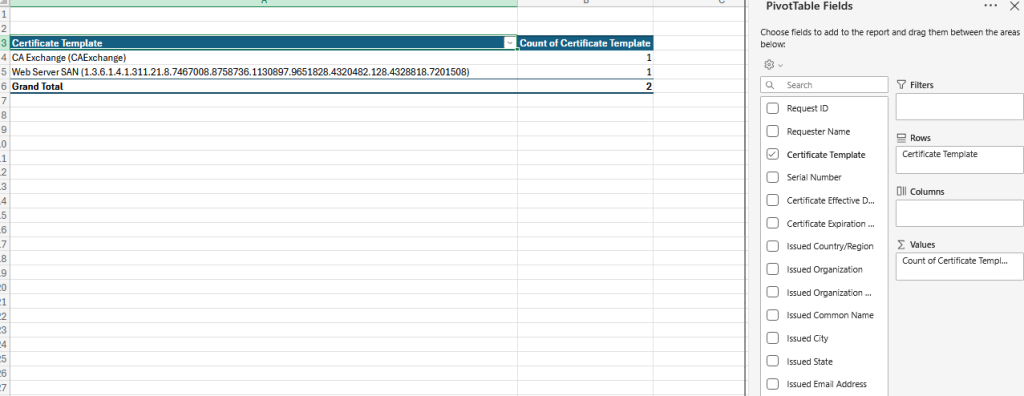
From Excel, by creating a pivot table with the below settings, you can very quickly assess what templates are in use and their counts. The exported data will help you identify where it was issued from (requester name) and also the common name.
If the database is particularly large and it’s troublesome using the default console, the PSPKI PowerShell module is an excellent tool. To install, simply run the command below from PowerShell which will download it from the gallery.

To grab all issued certs for Sub01 and Sub02 we can run the following, the second export appends to the existing file.
ipmo pspki
Get-CertificationAuthority -name Sub01 | Get-IssuedRequest | select RequestID,Request.RequesterName,CommonName,NotBefore,NotAfter,SerialNumber,CertificateTemplate,CertificateTemplateOid | Export-Csv -NoTypeInformation C:\temp\issued-certificates.csv
Get-CertificationAuthority -name Sub02 | Get-IssuedRequest | select RequestID,Request.RequesterName,CommonName,NotBefore,NotAfter,SerialNumber,CertificateTemplate,CertificateTemplateOid | Export-Csv -NoTypeInformation C:\temp\issued-certificates.csv -Append
At this point we can open in Excel and manipulate, filtering out expired certificates and creating the pivot table for an easy evaluation of template usage.
Using this information, I tend to work with the client to removed unused templates, most installs I see do not have a CAPolicy.inf and have the default automatically published templates are not required. Once you get the exported data, and the client agrees, remove any unused templates. For information the default templates are below.

With an accurate export of template usage in hand, the next sets of questions to answer are:
- What technologies are using PKI – examples could be AlwaysOn VPN, 802.1x wired / wireless, Microsoft SCCM, Microsoft Intune, NetScaler VPN etc.
- Are any RADIUS or Authentication systems used, for example Microsoft NPS or Cisco ISE. These tend to have manually published root certificates and can often pin to a particular CA root certificate thumbprint. These systems will need manually updating when we renew, otherwise things will probably break.
- Are there any non-windows appliance based systems, i.e. load balancers, firewalls, proxies, that sort of thing. These again often need manual imports for the renewed root certificates.
- Companies may will use one of the SubCA servers for TLS man-in-the-middle or decrypt – if so then this will need changing in the configuration of the device (usually a firewall or proxy) doing it. The device may have a dedicated SubCA from the offline root for this purpose, if so that may also need renewing as part of the change.
Example Template Migration
I’ll explain in principal, the route we can take to give you a sense of how to non-disruptively renew. For this example, I will pick Microsoft NPS and EAP-TLS 802.1x Wireless. Without modification NPS will do full CRL checking and can also be configured for certificate root pinning as well, so it’s a good one to unpick and once grasped, will help with the migration of the other devices.
Note that this example assumed that this is the only client based certificate authentication system in use, some large environments may have multiple use cases for machine certificates, so the preparatory steps below need to be applied to all technology areas in parallel. If you only do one of say five systems, the other four may break.
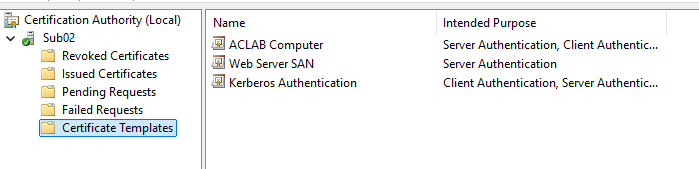
First thing to understand is what CA template is used, in our example we have an “ACLAB Computer” template being issued to all clients using automatic certificate enrollment using site awareness across both subordinates.

Additionally the Sub CA is pinned by thumbprint to machine based certificate authentication via group policy.

If we just went ahead and renewed the root and subordinate, at some point post renewal (remember that each machine cert will have its own timing for renewal, as it depends when they were issued) one of the clients may auto renew off the new subordinate. This is going to mean their certificate chain is based on the newly refreshed roots and not the prior ones. When the client comes to authenticate to 802.1x the chain of trust will be invalid and their authentication will fail. So how do we tackle this? Well its really a timing issue, and here is how.
- Before renewing the root certificate disable automatic enrollment by unticking the Autoenrol option in the template. This stops new certificates being issued against the new subordinate before we have a chance to reconfigure things. In some rare cases whilst doing this, a tiny number of computer certificates could expire, if this happens, hats off to you for being so very unlucky. The user will likely log an ITSM ticket and someone in the helpdesk can manually issue the certificate. You can preempt the customers helpdesk for this, in my exposure with very large clients, I have only seen this occur once.

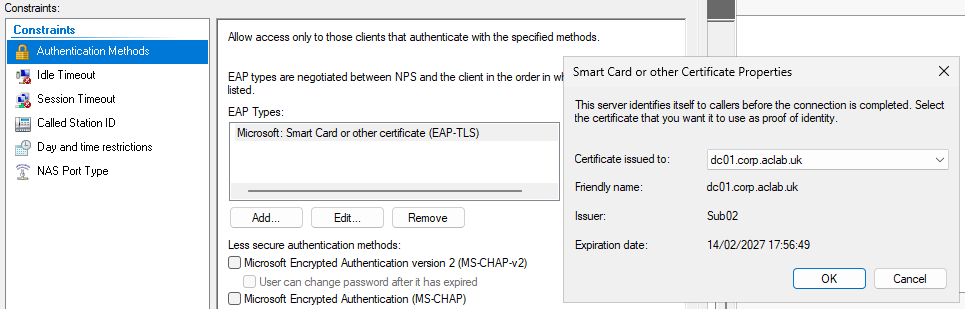
- Immediately after the offline root and subordinate renewal update the related 802.1x group policy to include BOTH prior and new root certificates. Depending on the environment the group policy could take days to roll out. As you can see in the screenshots below there are now multiple Root-CA certificates (due to the renewal), with individual thumbprints.
Note it may take time for this to push, if you have a large corporate environment, the alternative is to temporarily disable certificate pinning prior to the CA renewal. Do this by not ticking any root certificates in the Smart Card screen and additionally unticking the top certificate issuer box in the advanced screen. Once the new setup is fully in place, you can go back into here and reconfigure root pinning.


- Within the NPS server the EAP-TLS policy will also be attached to a certificate which is issued from the old root. This will also need updating, only do this once all clients have the new root and the updated wireless GPO.
- On a test laptop issue a new certificate manually and test that the connectivity works. If you want a clean test, you could remove all personal templates and only issue one from the renewed SubCA.
- Once happy re-enable automatic enrollment on the template by re-checking the Autoenrol tick box.
This method gives you a staged and incremental rollout of the change, which is what most organisations want. Nobody likes risk right. Principally this method applies to other services such as VPN’s and the like, as said before, if you have multiple client based certificate authentication of this type, you will want to make the required changes in parallel. The time between the renewal, changing the configuration and publishing the new roots, needs to be a small as possible.
For straightforward web servers or anything not involved in client authentication, you generally won’t have much of an issue. This is mainly because as part of the renewal we will not revoke the prior subordinate issuing root, meaning both old and new chains of trust are valid. In other words, existing certificates in the environment will continue to work and over time new ones issued from the new SubCA will also work. In effect the old SubCA root will naturally phase out.
You could go back at a later date and revoke the phased out SubCA certificate on the offline root, but honestly I don’t know many organisations that bother. The prior SubCA certificate was not compromised, it was simply renewed.
Renewing the Offline Root Certificate
In order to renew the offline root, follow these steps. First boot the server, it should be offline right? Login, if you have no network for additional security then I suggest temporarily adding one, else it is a royal pain. You would have to transfer certificate requests via ISO files for example.
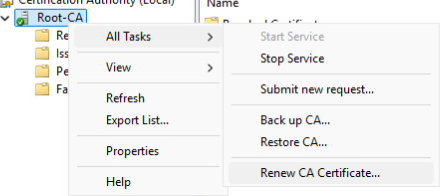
From the standard CA console, right click, all tasks, renew CA certificate.
Click yes to the prompt.
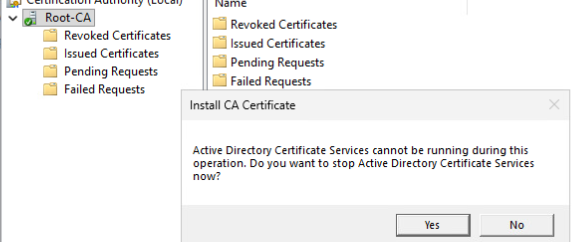
and yes again to get a new private key.

If you properties on the Root CA, you will see a new certificate with a new hash number. You can view this and confirm all looks good, check the valid from field.

At this point we now need to publish this into active directory, so copy it over to one of the subordinate servers using whatever method you like. To get the certificate go look in C:\Windows\System32\CertSrv\CertEnroll. Copy all of the files to C:\CertSrv on one of the subordinate certificate authorities, it doesn’t matter which as DFS-R will replicate to both anyway. This will update the AIA/CDP paths for clients in the environment.

From the subordinate run the following command, referencing the file copied. This publishes the new root into Active Directory, as the offline root is not domain joined, you cannot do this directly.
certutil -f -dspublish "C:\Certsrv\rootca01_Root-CA(1).crt" RootCA
At this point windows clients, servers etc will automatically download the new Subordinate certificates on their next refresh, which if they are connected to the network is usually within 90 minutes. If you use Azure and Intune you should also publish the root and subordinate certificate here, so they are available for your any new Autopilot builds. You will also need to manually publish to your wider non domain joined devices, i.e. firewalls, load balancers and the like.
Updating the Offline Root CRL
Since we have already booted offline root, here is how to also renew the CRL file. In a new elevated command prompt, run the following command.
certutil -crl
Copy the CRL file over to one of the subordinate CA servers, by default the Offline Root will publish its updated CRL to “C:\Windows\System32\CertSrv\CertEnroll”, we want to copy both files over.

If you have published the CRL via LDAP, from one of the Subordinates, type the following commands. The last part of this command is the hostname of the CA server.
certutil -f -dspublish "C:\Temp\Root-CA.crl" rootca01
certutil -f -dspublish "C:\Temp\Root-CA(1).crl" rootca01
If you have published the CRL via HTTP additionally paste into your IIS path, in our Perfect PKI guide we used C:\Certsrv which is automatically replicated with DFS-R between both Subordinates and is shared by a load balanced HTTP path.

Confirm the update using pkiview.msc.
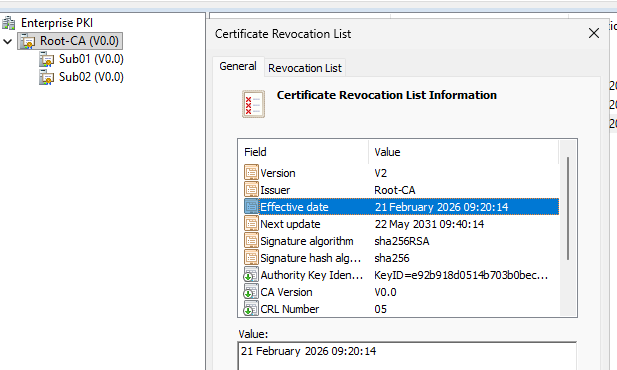
Lastly, shutdown the offline root to secure it’s private key.
Renewing the Subordinate Certificate
For the Subordinate Issuing servers the renewal is a two step process, we need to get the CRL file from each SubCA over to the RootCA to issue it, then paste the issued public key back on the SubCA and complete the wizard. Here is how.
From the standard console on the first SubCA, right click > all tasks > click renew CA certificate.

Say yes to the prompt.

Say yes to generate a new private certificate.

On the next screen, click cancel, there will be a REQ file placed on the C:\ of the SubCA.

Copy the REQ file to the Offline Root.

From the standard certificate services console on the Offline Root > right click > all tasks > submit new request.

Click open on the REQ file.

Under pending requests, right click > all tasks > issue.
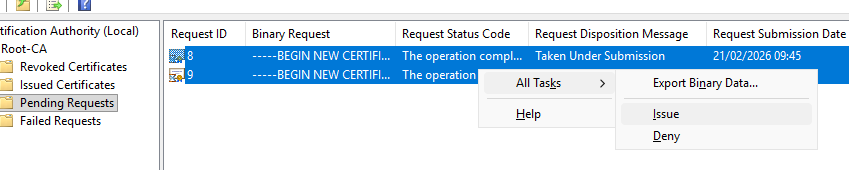
Under issued certificates, you will see the new SubCA root public key, which you can export by double clicking it, going to details, copy to file.

Click next and select Base-64, DER will also work fine but Base-64 is also PEM formatted which many appliances etc prefer.

Save the file with an appropriate name, as this one is the second certificate I am aligning the naming with Sub01(1).cer.

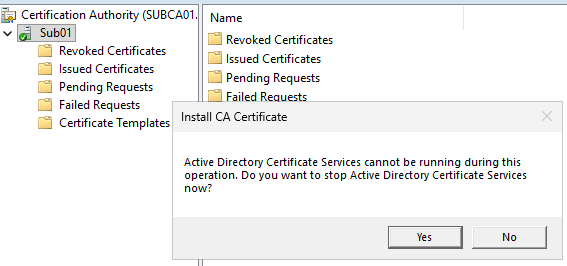
Copy the file over to the SubCA itself. From the standard certificate services console right click > all tasks > install CA certificate > select the file we copied. This will pair the private key which was generated by the renew CA certificate option with the issued public key.
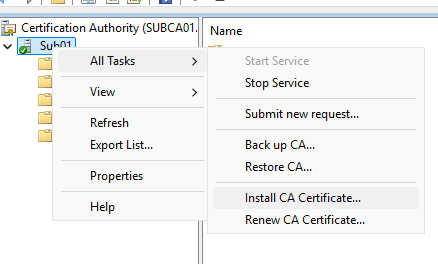
Say yes to the prompt.
Open the copied public key.

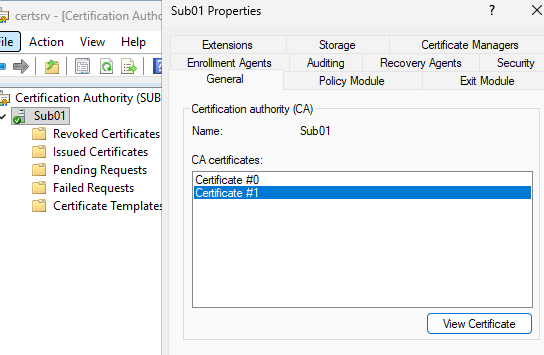
From the SubCA you will see a second certificate.
Copy the new subordinate root CA file from “C:\Windows\System32\certsrv\CertEnroll” into your HTTP CDP path, in our lab environment this is C:\Certsrv which is distributed to both SubCA servers using DFS-R and is fronted by a HTTP load balancer.


Repeat the above steps for the second SubCA, then validate the overall health with pkivew.msc.

At this point windows clients, servers etc will automatically download the new Subordinate certificates on their next refresh, which if they are connected to the network is usually within 90 minutes. If you use Azure and Intune you should also publish the root certificate here, so it’s available for your any new Autopilot builds. You will also need to manually publish to your wider non domain joined devices, i.e. firewalls, load balancers and the like.
What’s Next?
This concludes this particular article. I hope it was helpful to make PKI a bit more graspable. At some point I will write other articles on common scenarios which challenge organisations, for example:
- How do we move from an older Windows operating system to a newer one? Our cyber guys are putting pressure on us to get onto later versions.
- Our PKI is so broken and bad, we want a new one, how do we migrate to a greenfield deployment and retain service in our environment?
